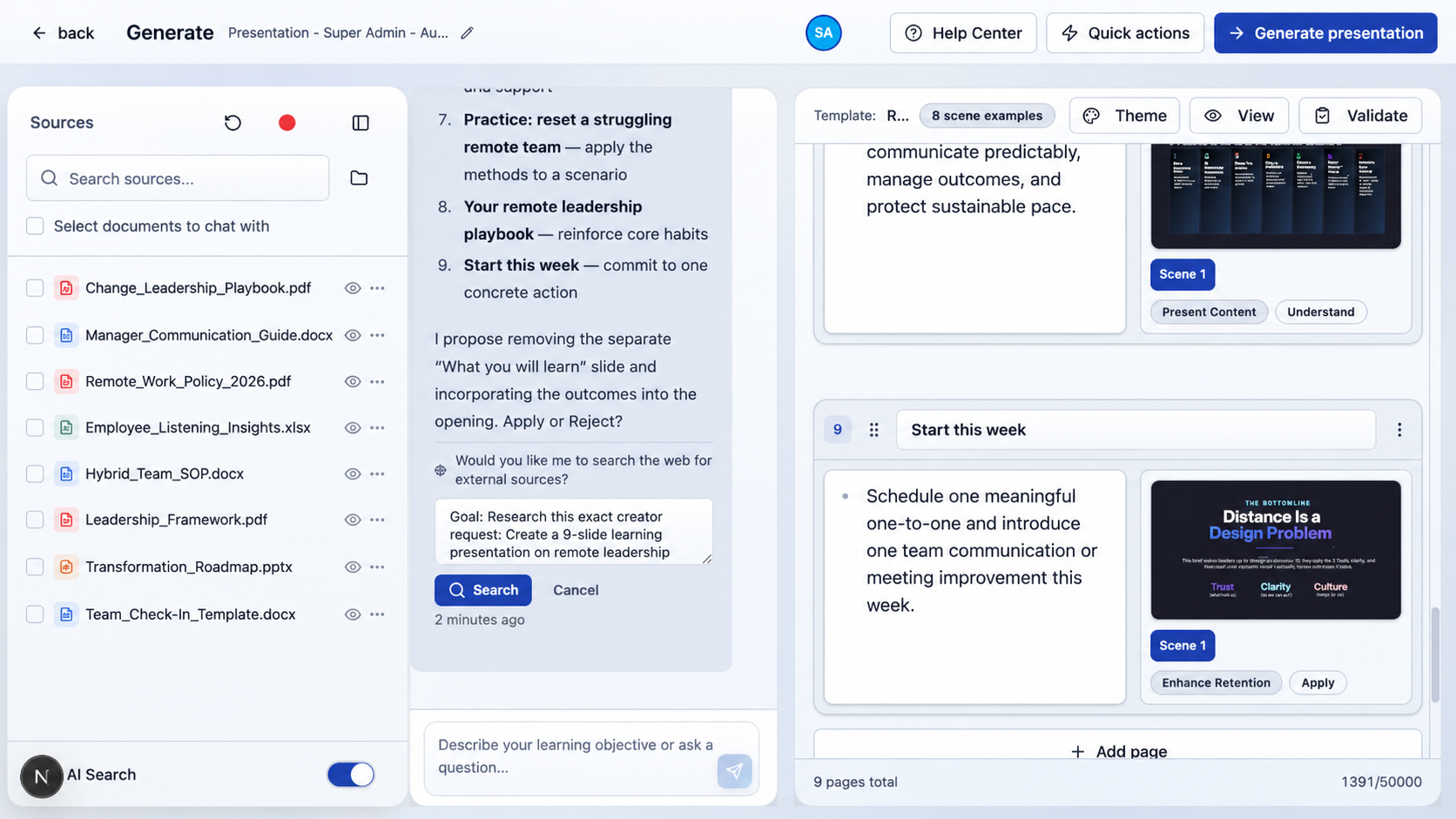
Convert SOP to Training Course
Turn standard operating procedures and runbooks into structured lessons, guided practice, and knowledge checks while keeping every module linked to the reviewed procedure.
Generate Studio
Build a course. Design a presentation. Add an avatar. Create a podcast. Start with your sources.
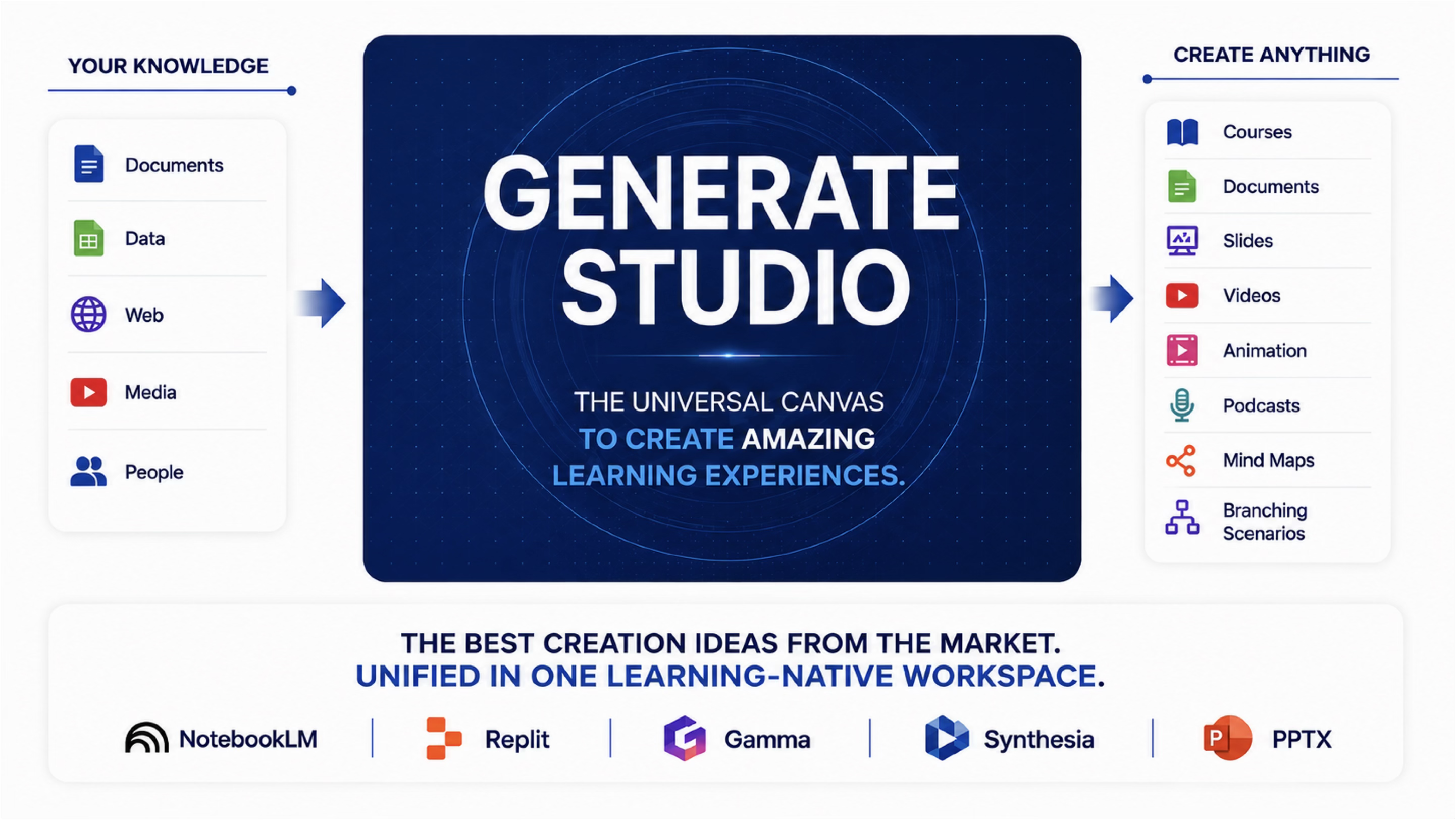
One workspace. Connected canvases.
You shouldn’t have to rebuild your thinking every time you change formats. Generate Studio brings the source material, shared chat, and specialized editors into one family.
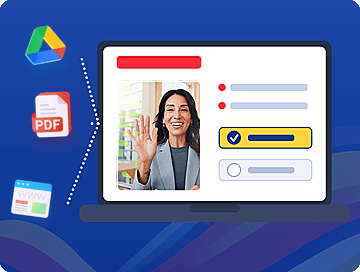
Explain, practice, and check understanding.

Give your ideas room to stand out.
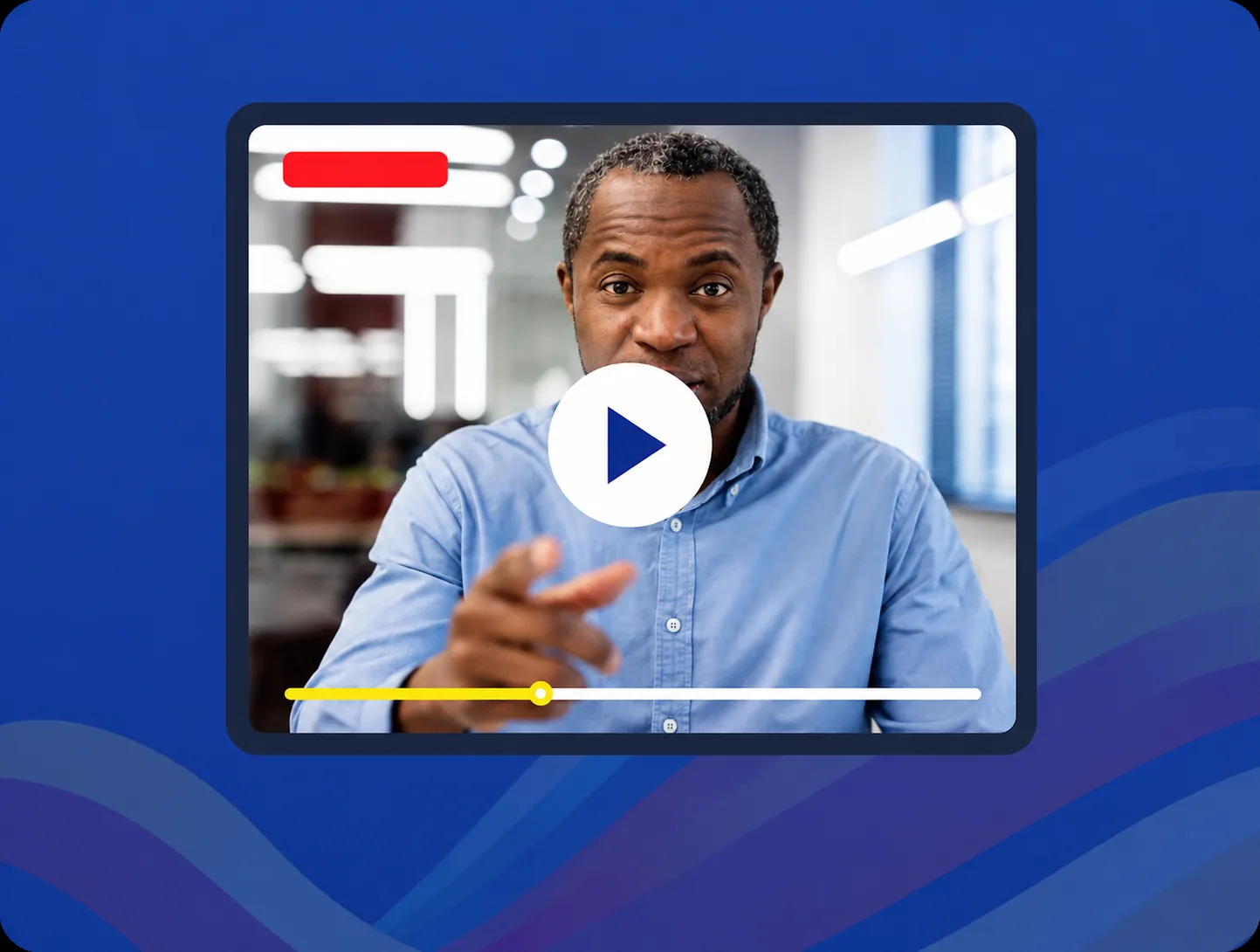
Put a presenter into the scene.
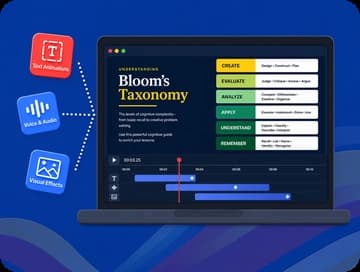
Use movement to guide attention.
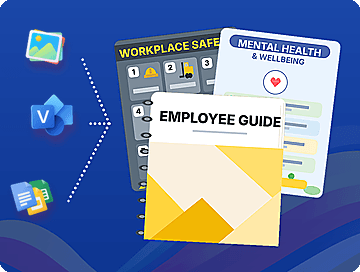
Create something worth keeping nearby.
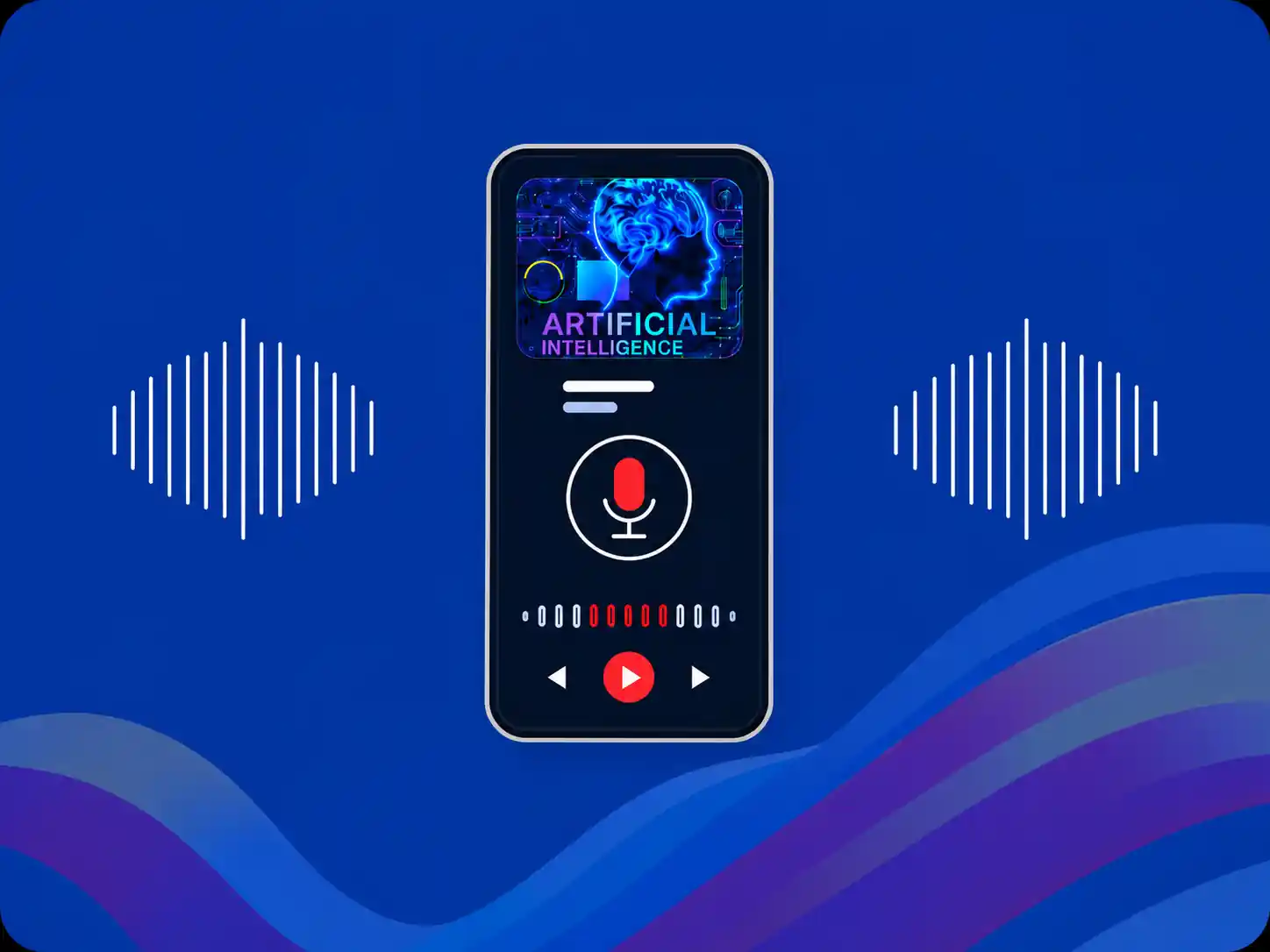
Give the topic a voice.
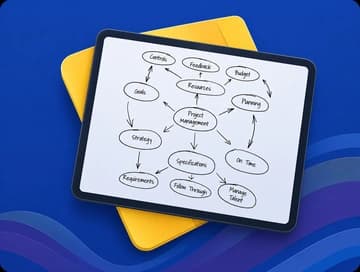
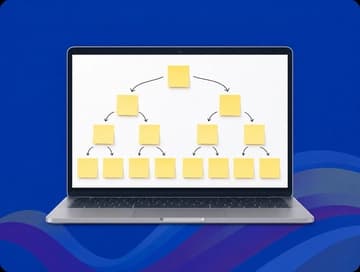
Show how the ideas connect.
Let learners make the decision.
01 / BRING THE KNOWLEDGE
Your playbooks. Your documents. The explanation your subject-matter expert finally put into words. Bring that material into the studio and build from it.
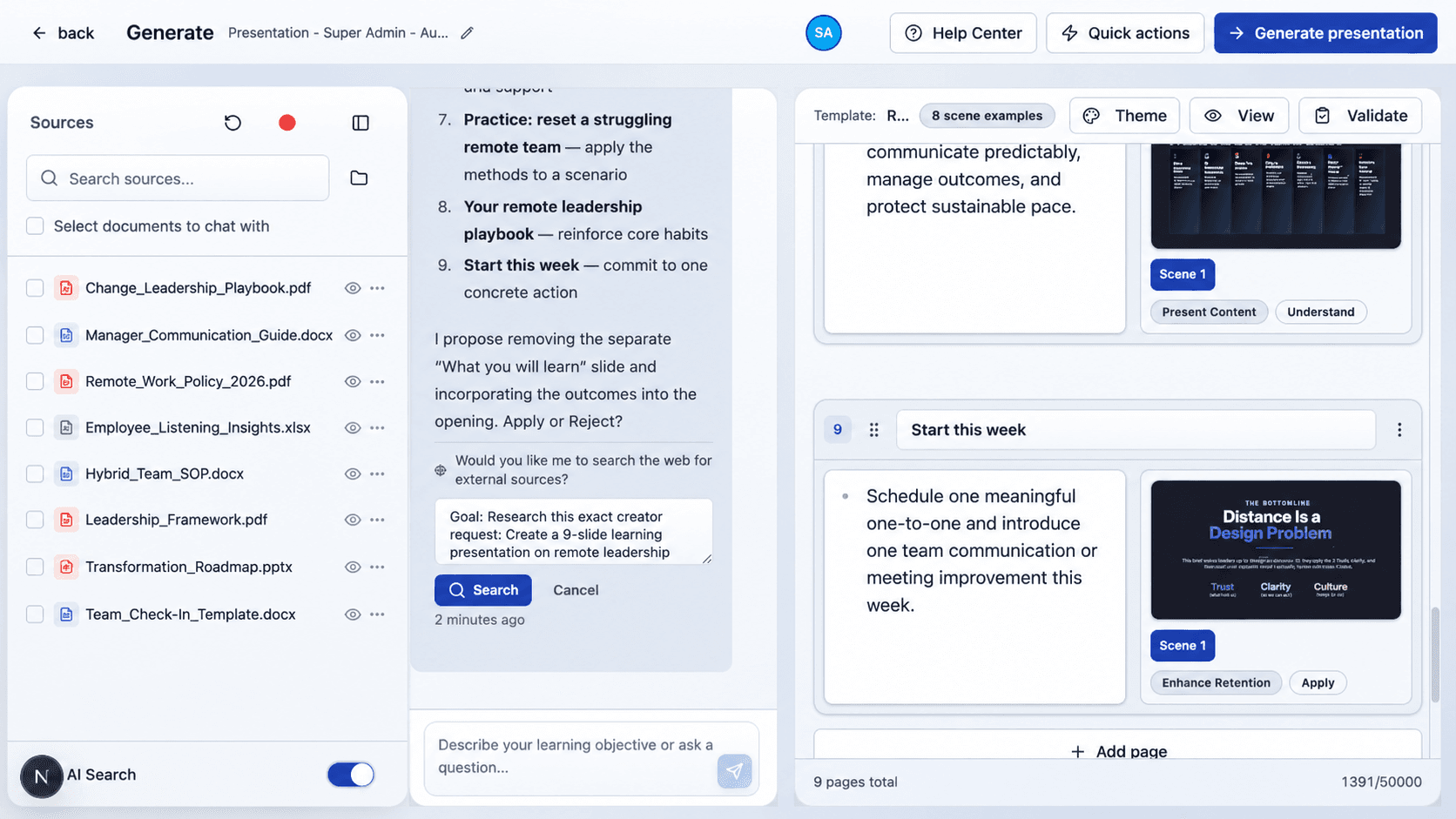
Choose the material that should inform the work.
Define the audience, the purpose, and what people need to do.
Refine the outline or storyboard before generating the first draft.
Turn standard operating procedures and runbooks into structured lessons, guided practice, and knowledge checks while keeping every module linked to the reviewed procedure.
Bring governance PDFs, regulatory handbooks, and security policies into Generate Studio, refine the storyboard with subject-matter owners, and publish an interactive course with in-course AI Coach context.
Transform onboarding decks, product playbooks, and internal documentation into connected courses, slides, avatar videos, podcasts, or branching scenarios from one shared source workspace.
02 / DESIGN THE LEARNING
A clear explanation. A visual that makes it click. Then something to try. Explore how one financial lesson can bring all three together.
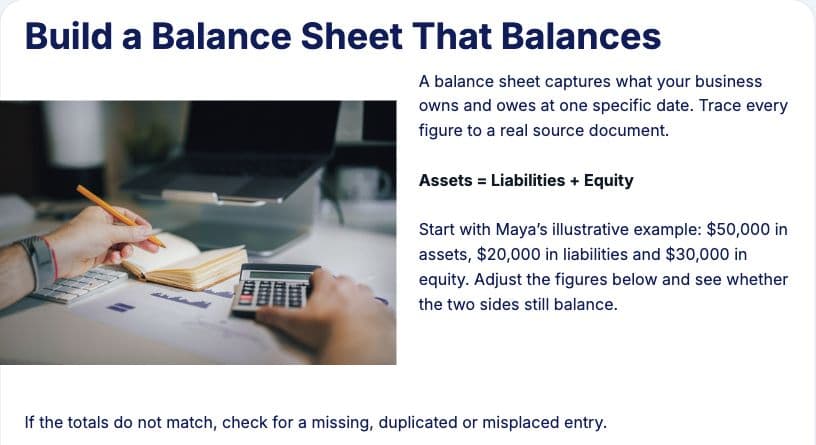
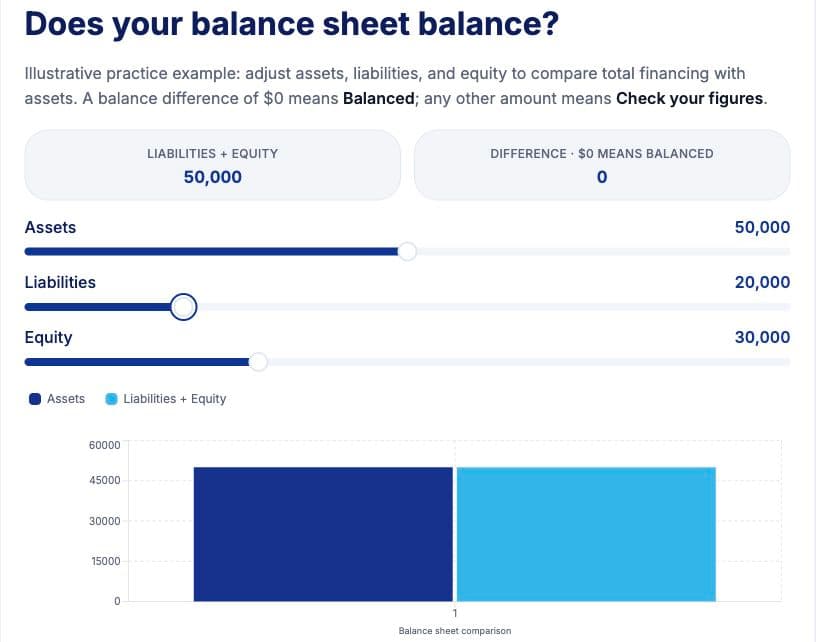
EXPLAIN. THEN EXPERIMENT.
From “Build Financial Statements From Your Own Records,” created in Course Builder.
Two captures of the working calculator. The controls above switch screenshots.
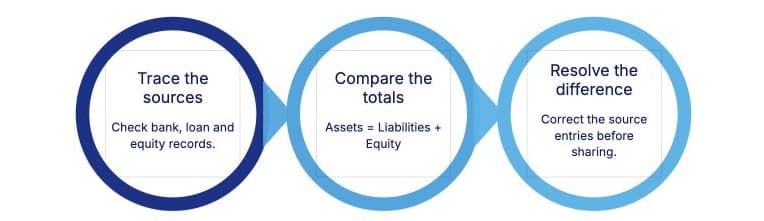
MAKE THE CONNECTION VISIBLE.
The same balance-sheet lesson, explained with a native Course Builder diagram.
03 / CREATE THE PRESENTATION
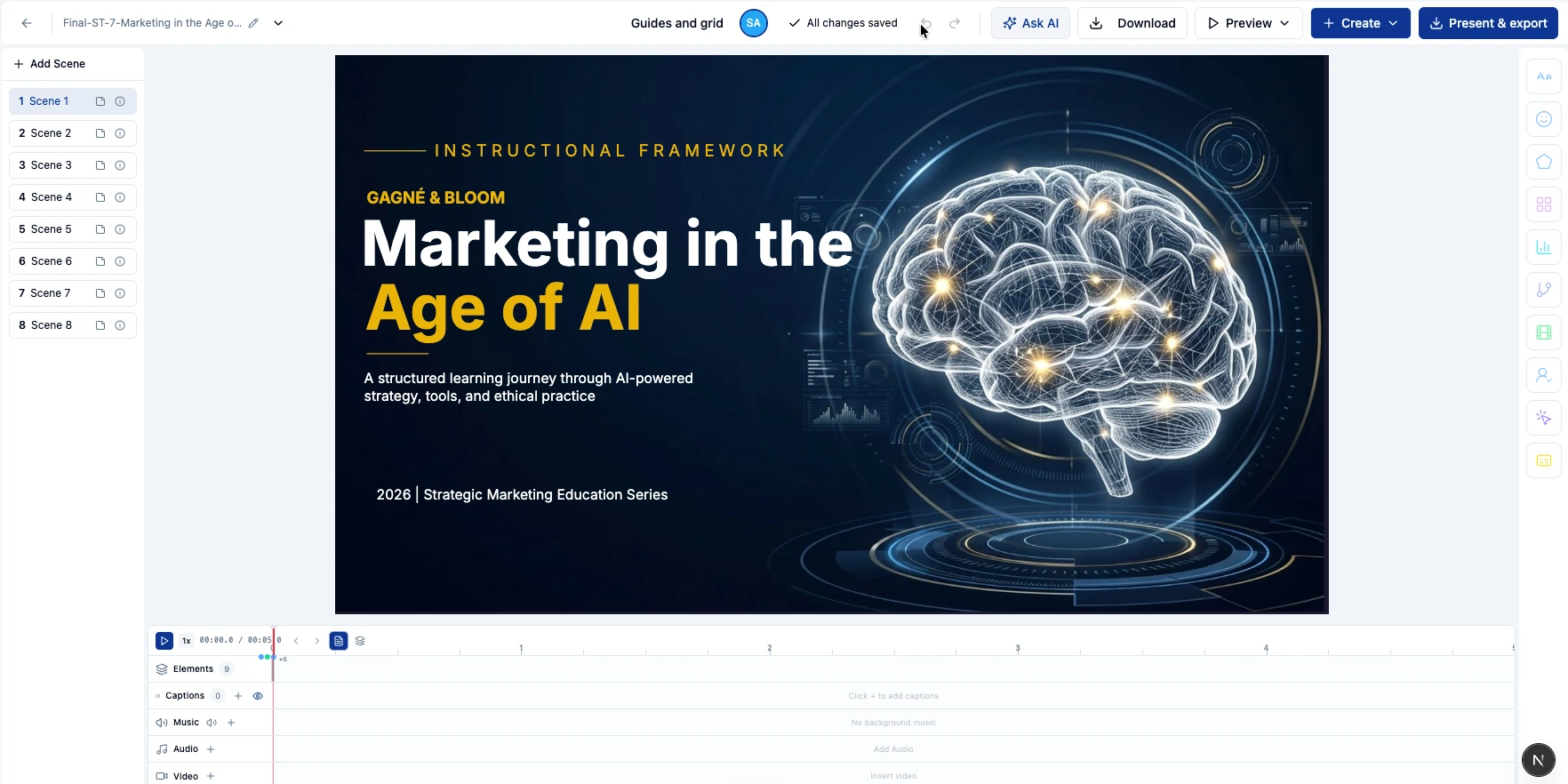
Give your source material a visual form. Shape a presentation in Slide Studio, then bring in narration, movement, or a presenter from the Generate Studio family.
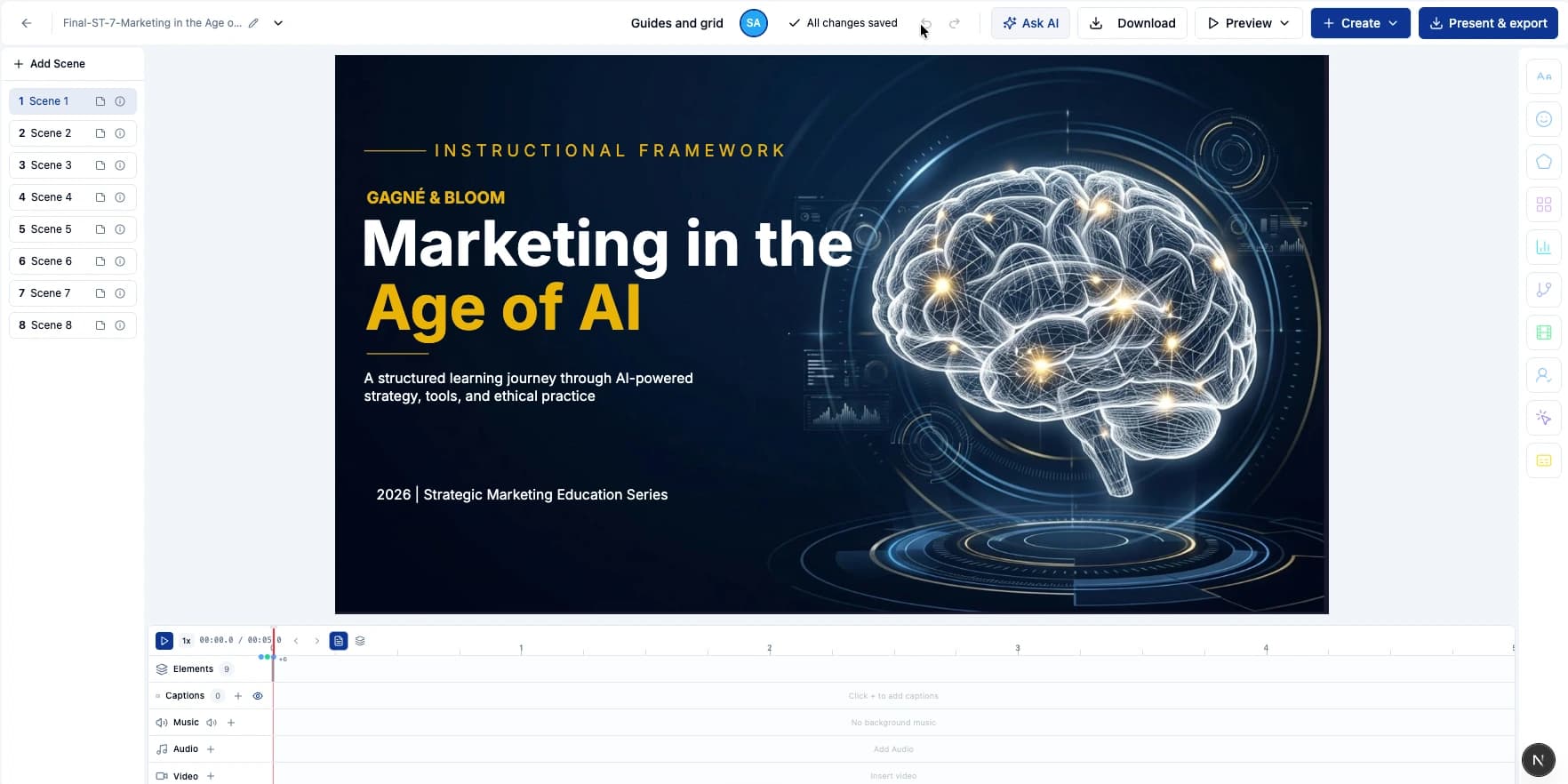
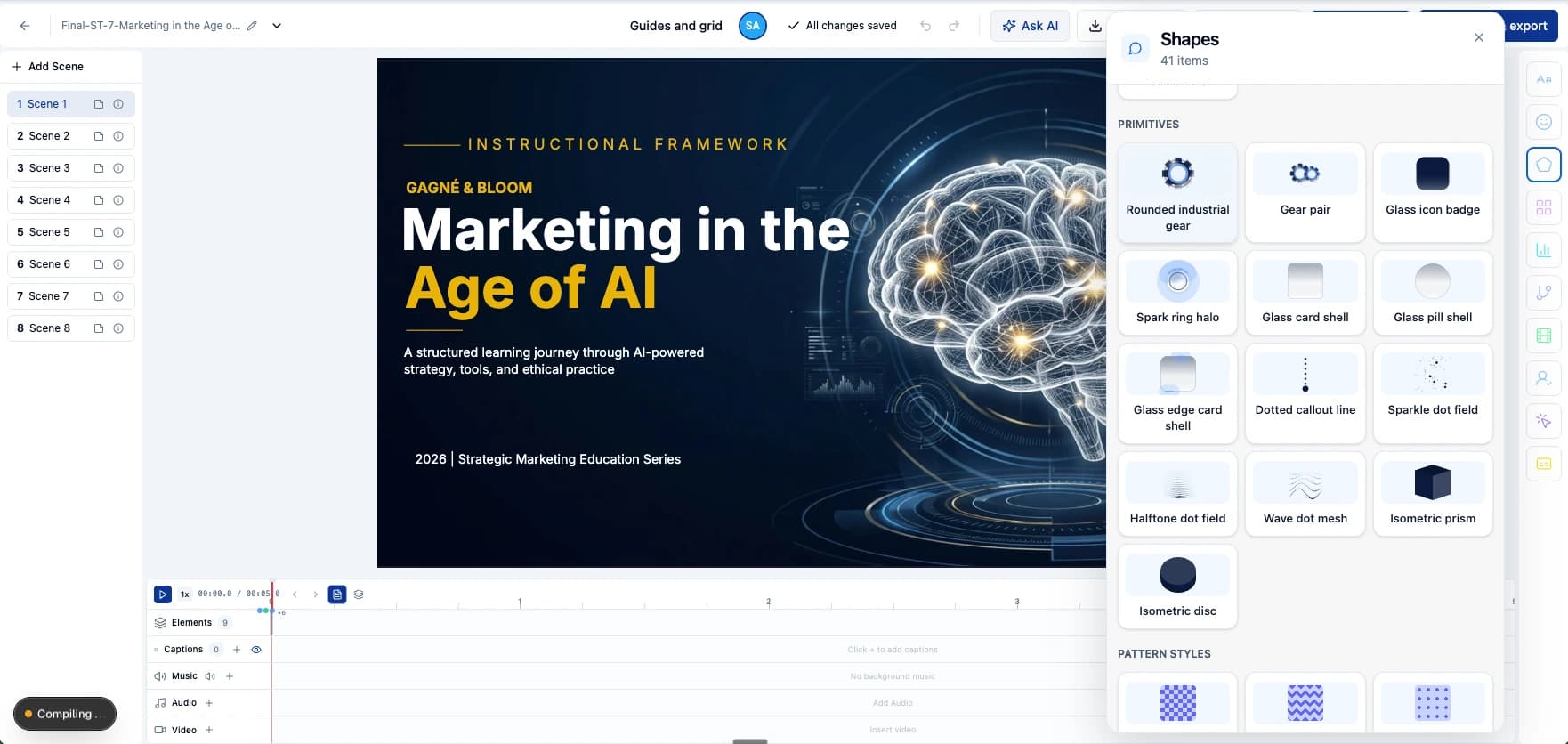
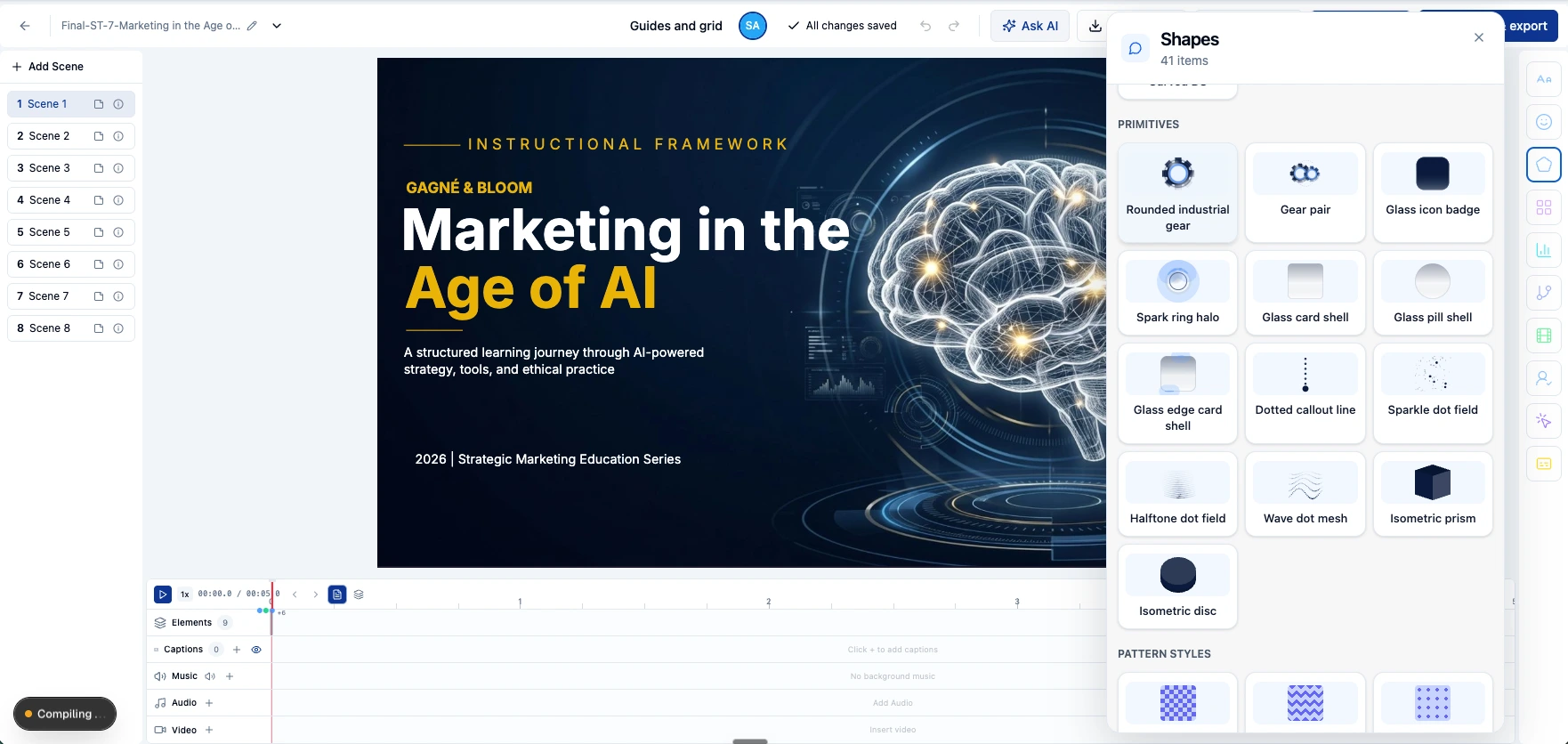
Start with a template. Work with text, images, charts, and diagrams on the canvas.
Use narration, transitions, motion paths, and cinematic pan and zoom to shape the scene.
Add questions and buttons in the Upskillable player. An exported MP4 remains a linear video.
04 / AVATAR STUDIO
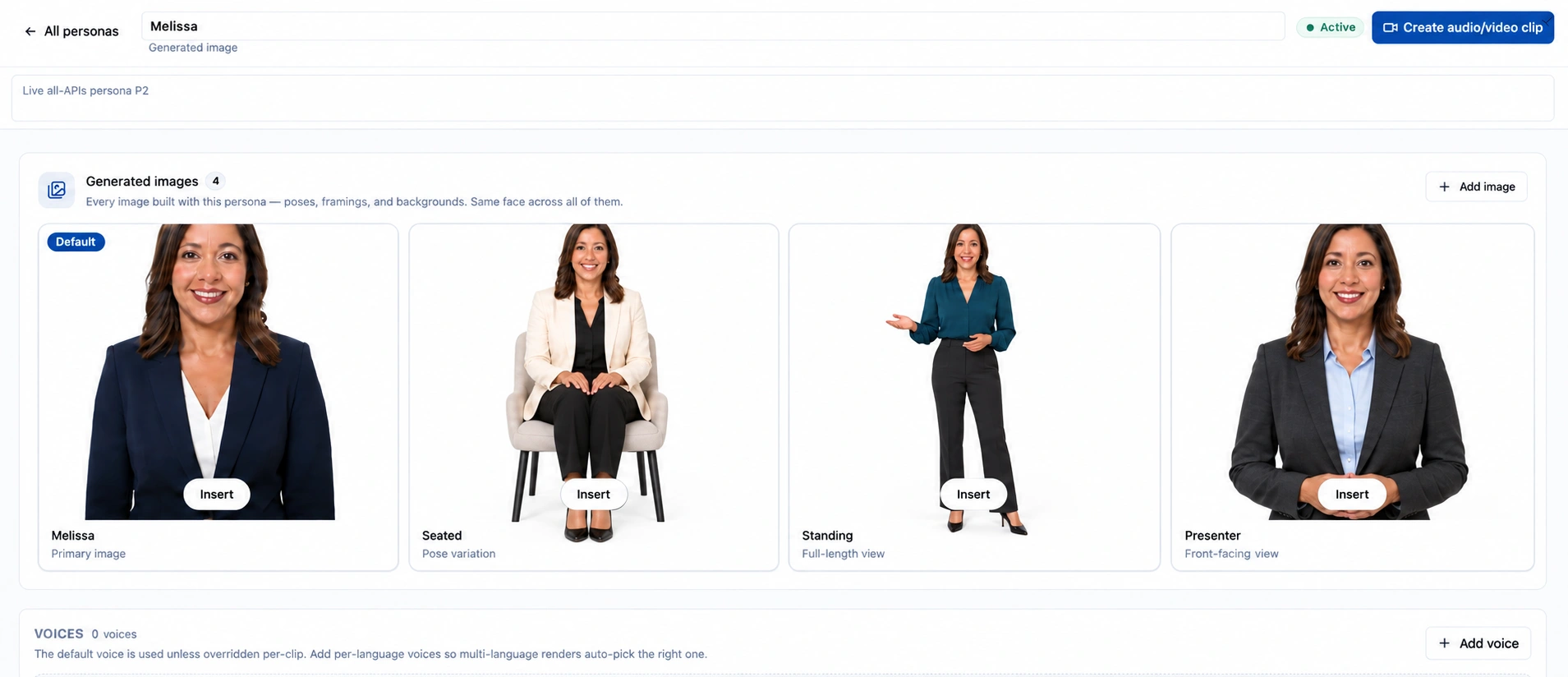
Start with a persona. Choose an image, then prepare an audio or video clip for your scene. The presenter becomes part of the same creative workspace.
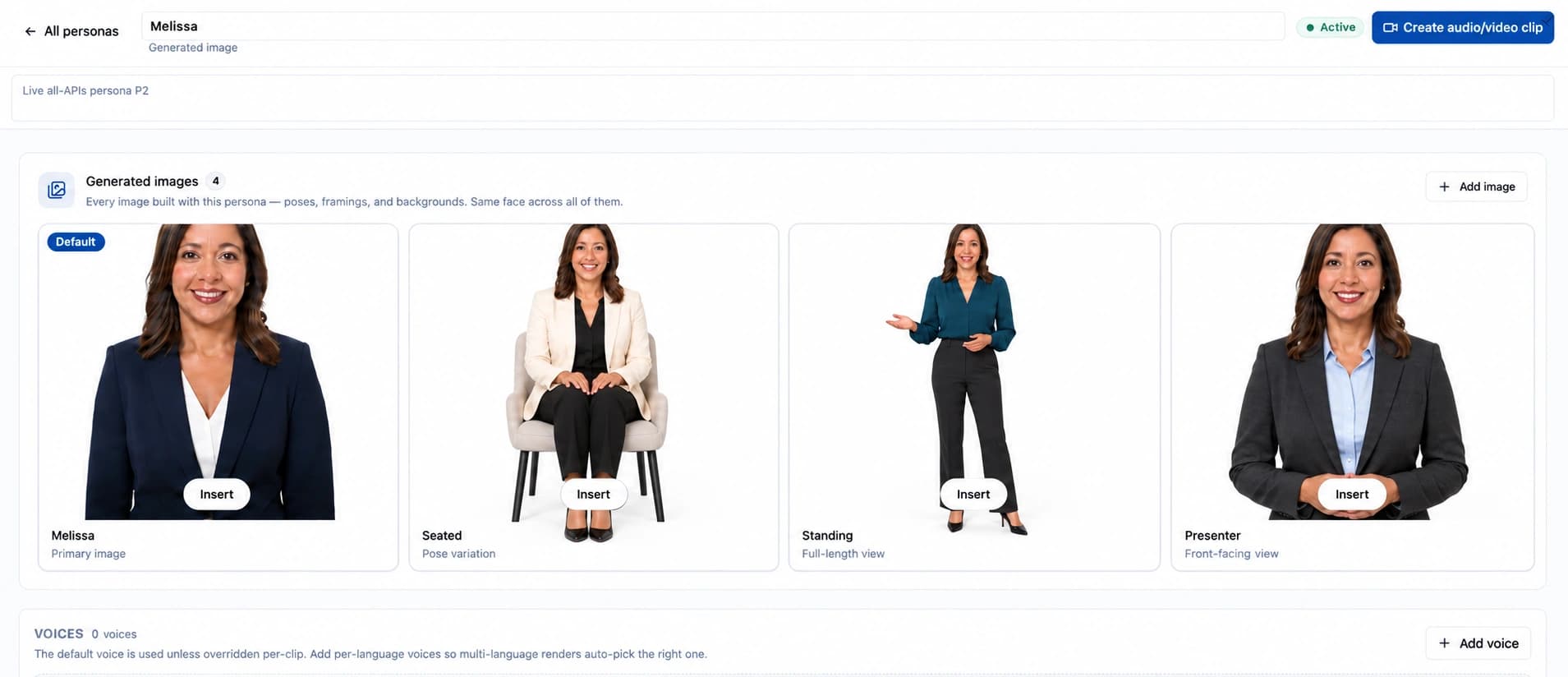
Keep a persona’s image variants together in one place.
Review the available artwork and insert the version that fits your scene.
Open the audio/video clip workflow to prepare the script and voice.
Pose and outfit variations were added to this image for illustration; they are not saved persona assets.
05 / REUSE THE CONTEXT
Turn the same source material into a course, a document, or a podcast. Reuse an image across a course and a slide. Build a mind map to explain the connections. Different outputs, with a shared starting point.
06 / SUPPORT THE LEARNER
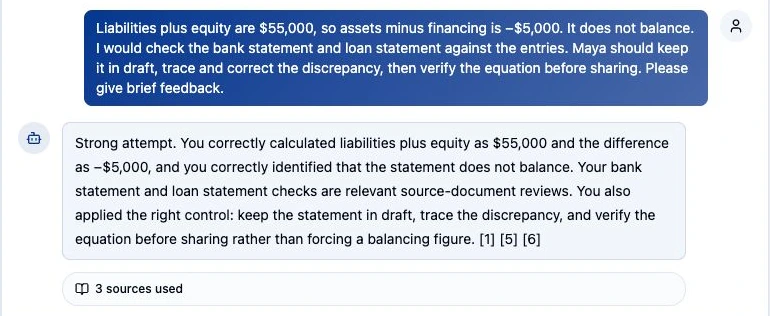
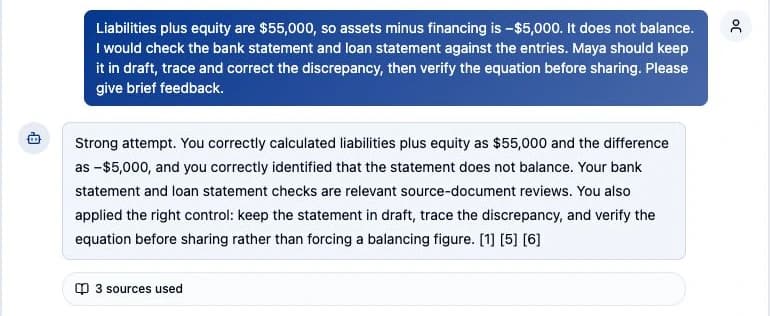
The context used to build the learning can also support the AI Coach. So when someone asks for another explanation, the conversation can draw on the material behind the course, not only the words on the current page.
That’s the connection we’re building across Upskillable: help the creator explain the subject, then help the learner work through it. More relevant context is useful. It still needs the right teaching approach and reliable answers.
LET’S MAKE IT CONCRETE
Bring a topic and a sample of your source material.
Let’s explore what it could become in Generate Studio.