
Engage / Learning management system
Put learning in motion.
The course is ready. Now get it to the right people.
Manage enrollment, learning paths, and live training in one LMS workspace. See what needs attention and choose the next step.
From the first assignment
to the next conversation.
Your people. Their learning.
A clear next action.
- EnrollChoose who needs the learning.
- DeliverBring courses and live sessions together.
- Follow throughReview progress and investigate the gaps.
01 / Start with what needs attention
Less searching. A clearer next action.
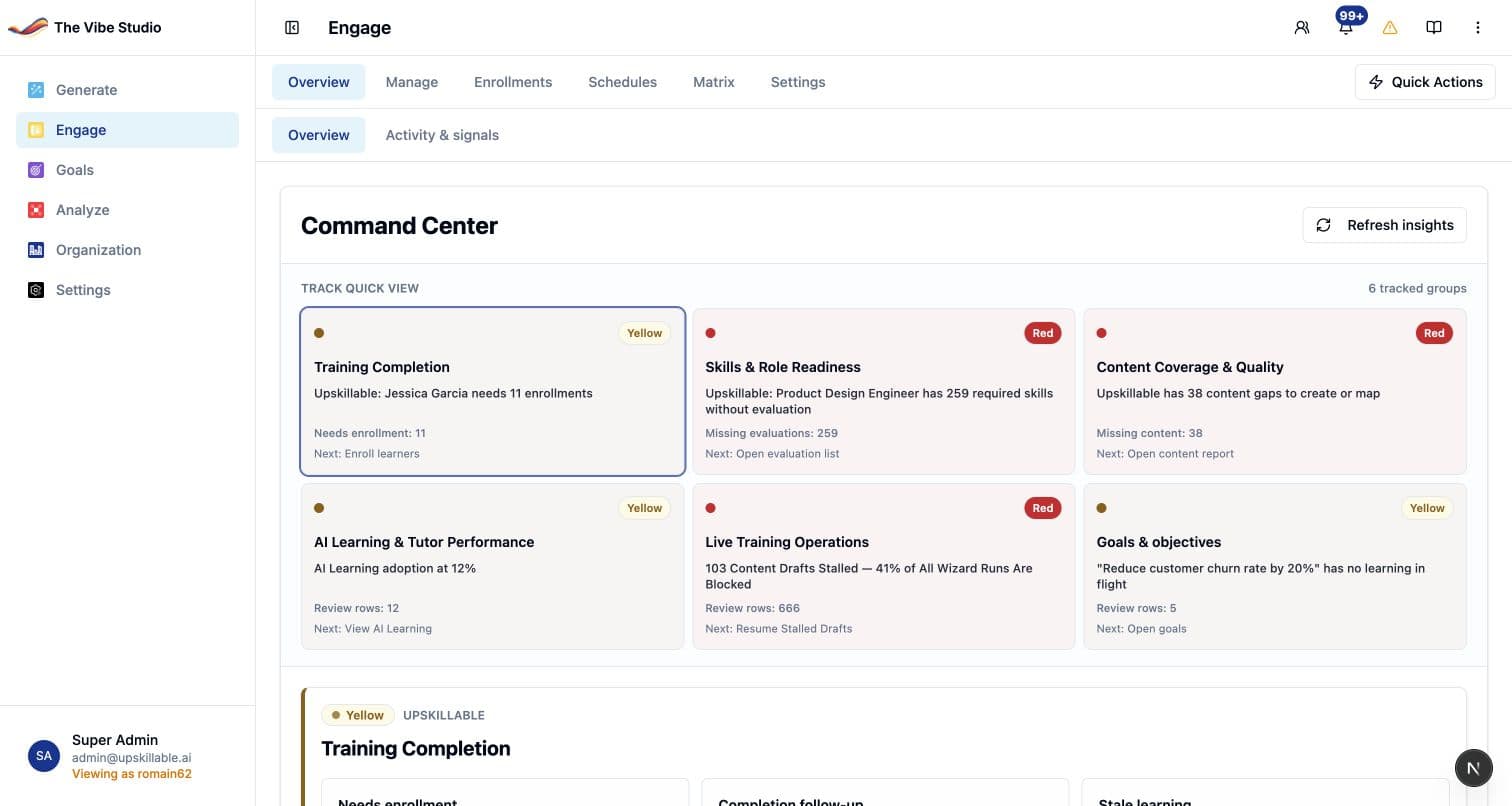
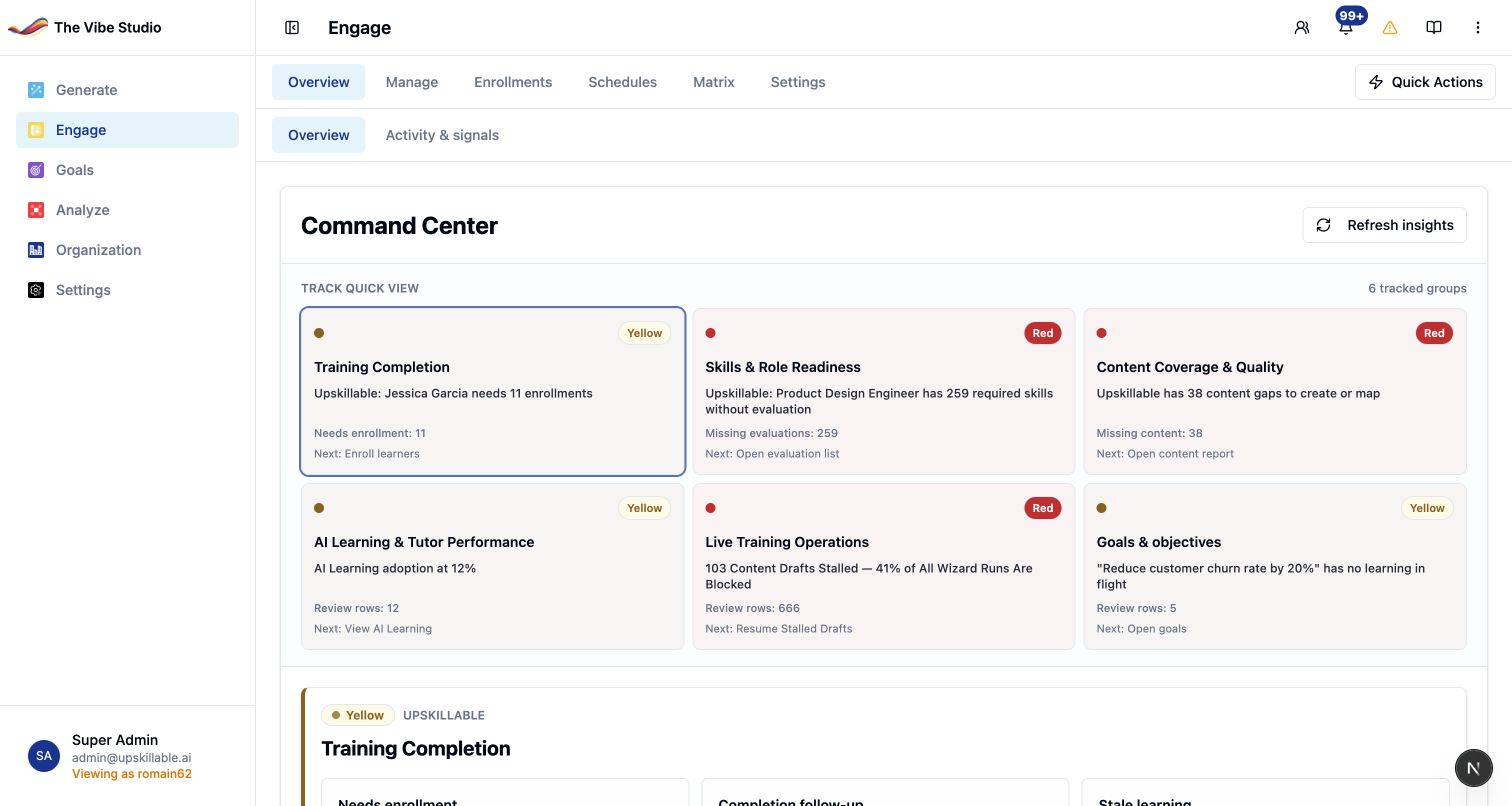
Who still needs an enrollment? Where are skill evaluations missing? Engage brings evidence-backed insights into the Command Center, helping administrators focus their attention and investigate the next action in Analyze.
Agentic assistance, with you in control
From the signal to a considered recommendation.
Alongside its rules-based insights, Engage has an optional agentic strategic advisor. It checks proposed recommendations against your organization’s learning data and revises proposals that fail its checks. You review the evidence and decide what happens next.
Strategic advisor availability depends on workspace configuration.Spot the priority.
Start with a track such as training completion or skills and role readiness.
Inspect the evidence.
Follow the enrollment-gap report into Analyze with the relevant context.
Choose the action.
Review who is affected and decide where an enrollment or follow-up is needed.
02 / Get learning to the right people
Choose the learning.
Choose the audience.
A revised procedure may affect one department. A new course may be relevant to a whole role. Start with the learning, then find the people who need it.
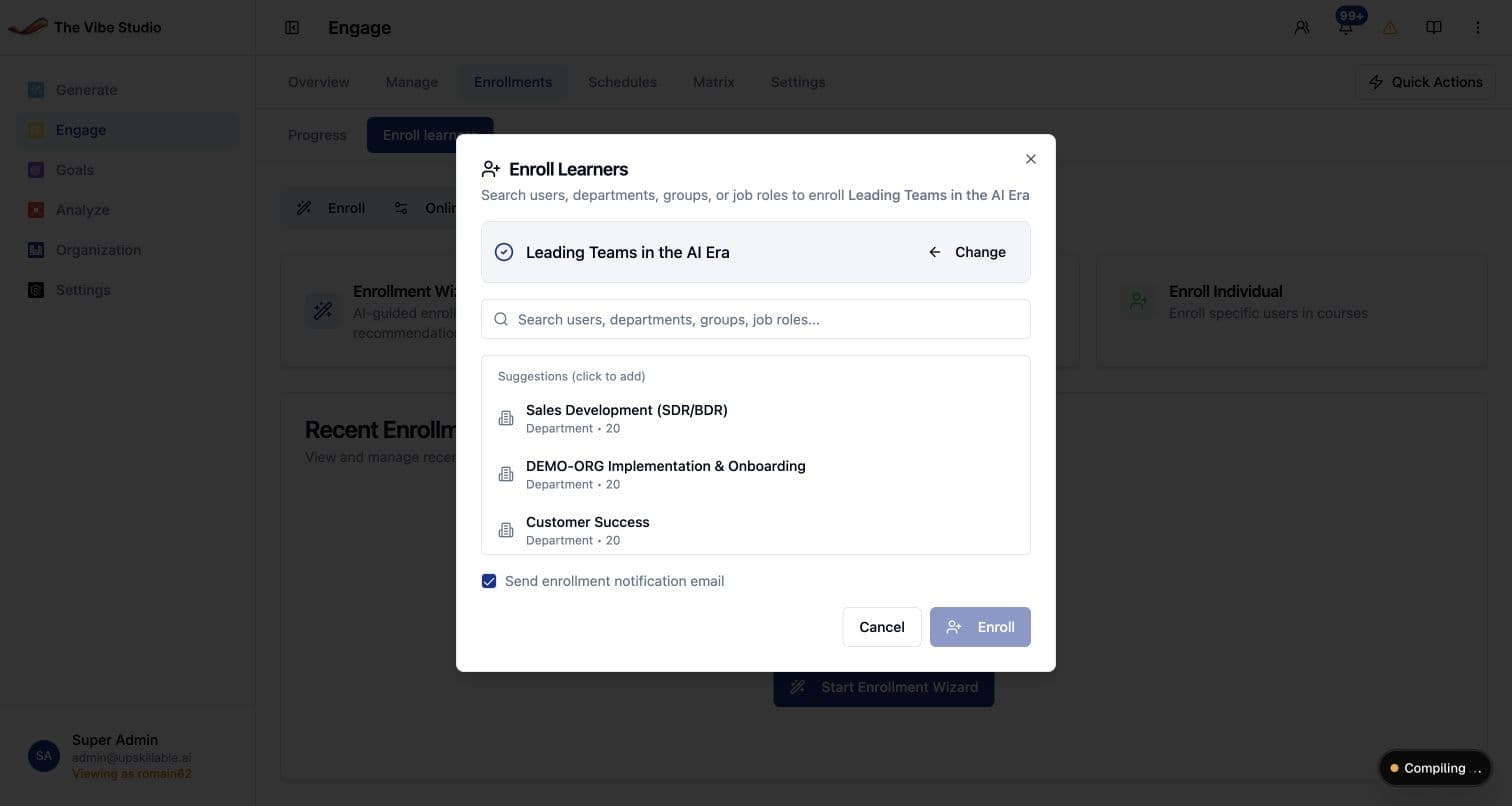
- Find users, departments, groups, or job roles.
- Review the selected course and audience.
- Choose whether to send an enrollment notification.
The administrator reviews the selection before enrolling learners.
From assignment to follow-up
- 01Choose the learning
Select the course or learning path that meets the need.
- 02Define the audience
Find the people or organizational groups affected.
- 03Plan live participation
For live learning, select a session and review registration or waitlist status.
- 04Review progress
Follow enrollment status, attendance, and completion to guide the next action.
03 / Live training belongs in the LMS
The session is part of the learning.
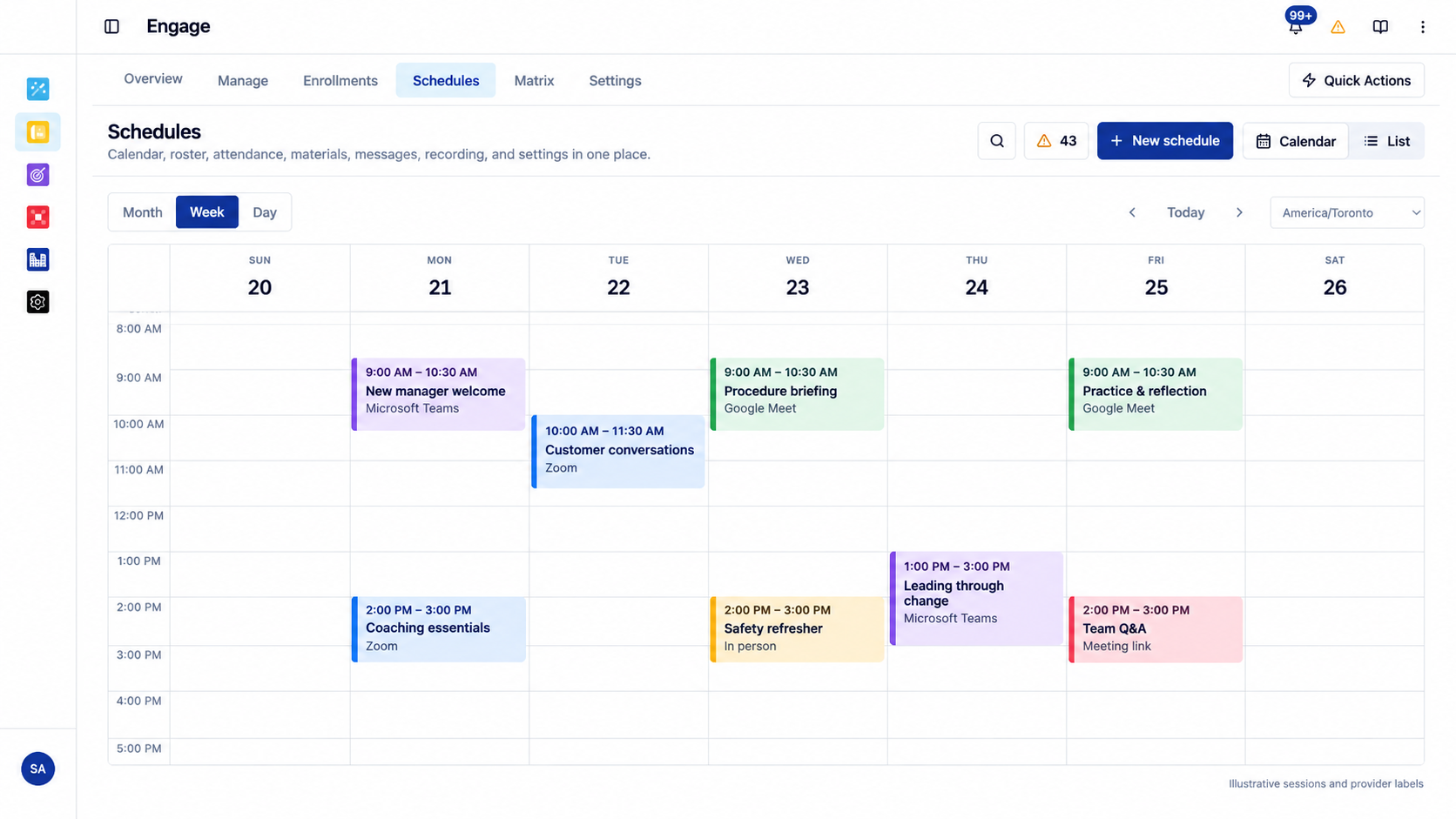
Virtual instructor-led training (VILT), in-person training, and blended courses need more than a meeting link. Organize the schedule, the people, and the attendance around the learning they came for. In week and day views, drag a session to propose a new time or resize it to adjust its duration, then review and confirm the change.
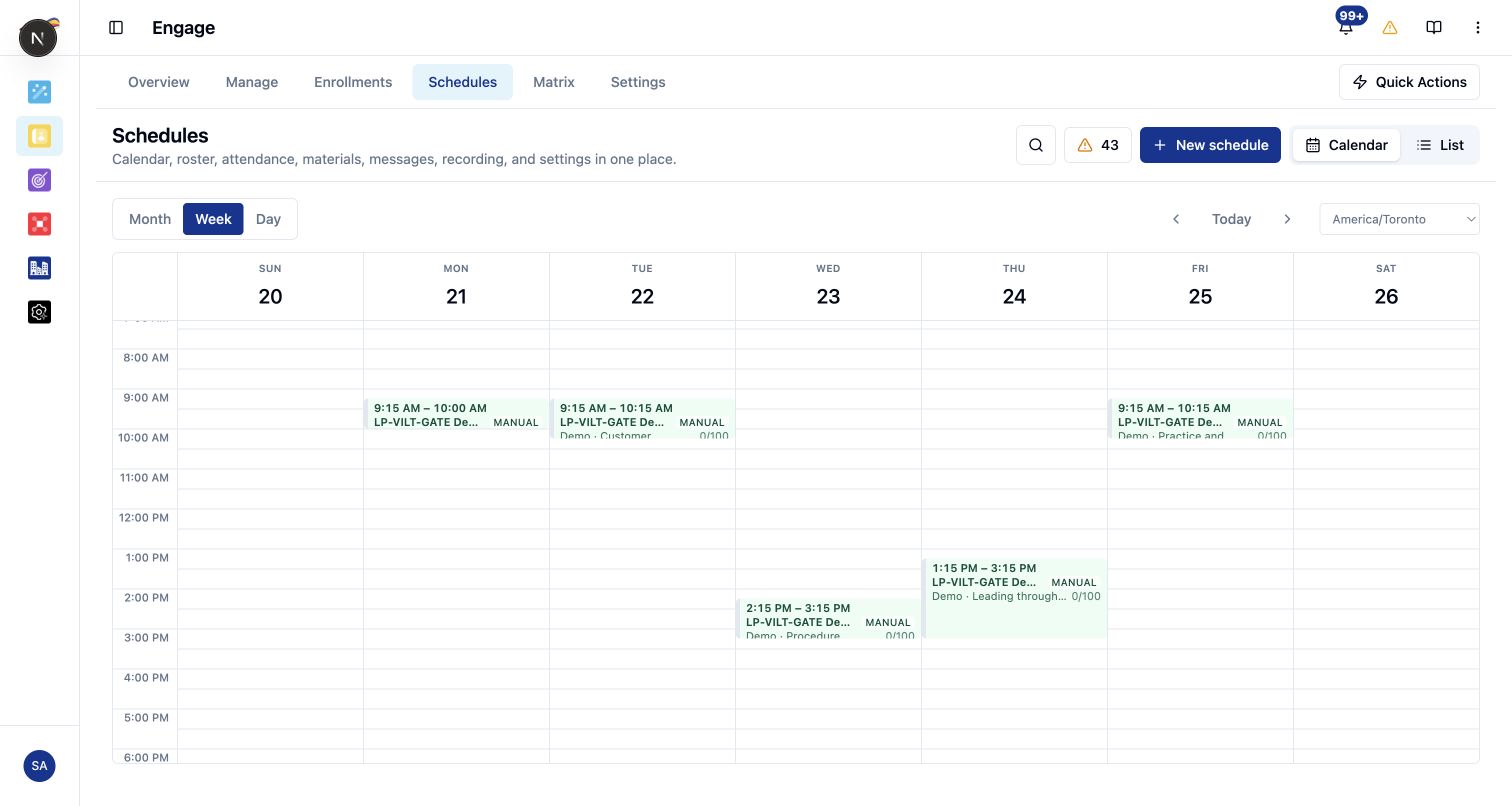
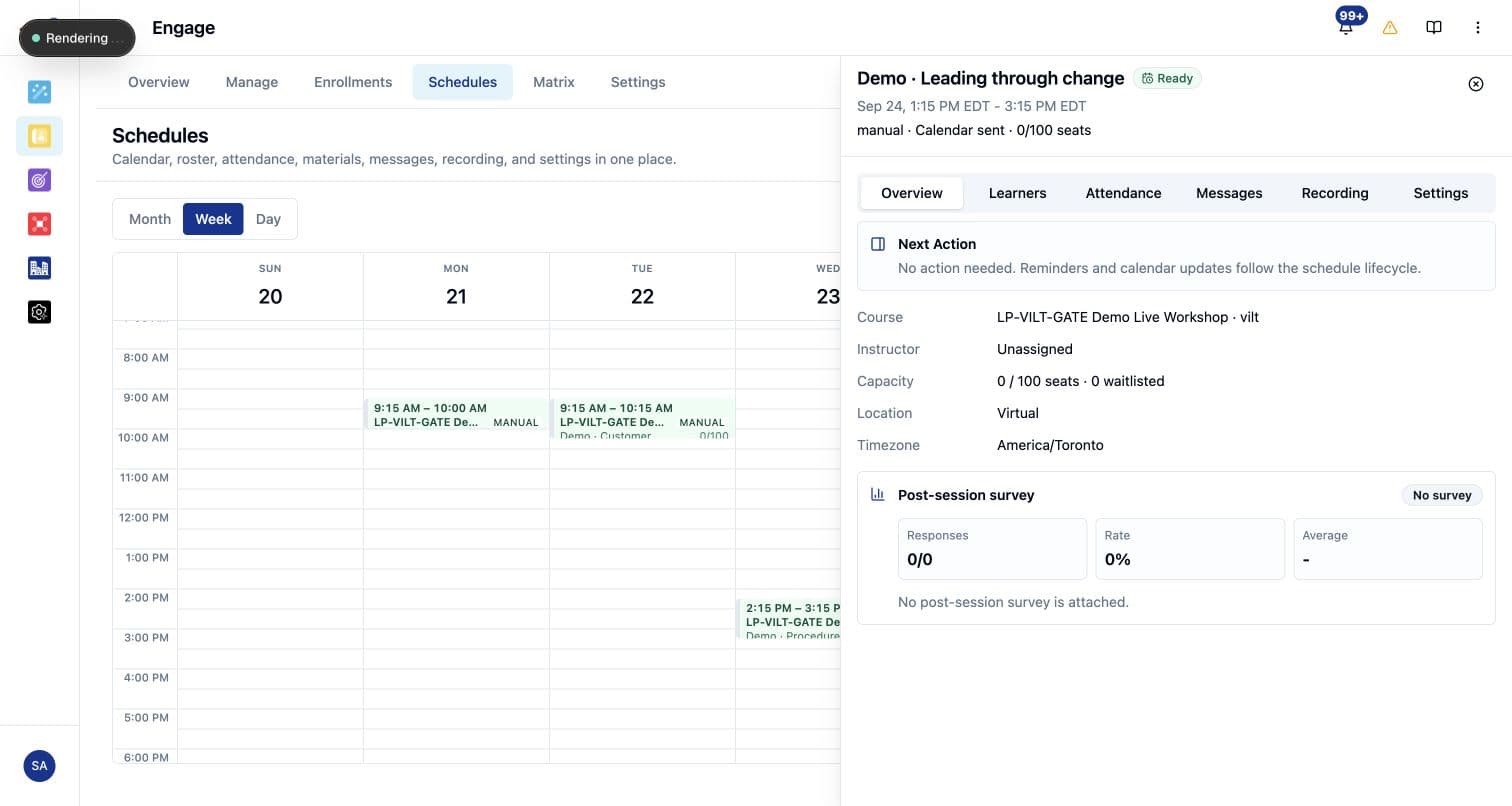
See the real session manager
Keep the session’s learners, attendance, messages, recording, and settings together. Open the relevant tab to review the details before taking action.
Your meeting tools. Your learning workspace.
Choose the provider when you create the schedule. Keep the learning, roster, and attendance organized in Engage.
- TMicrosoft TeamsMeeting connector
- Google MeetMeeting connector
- ZoomMeeting connector
- Manual meeting linkBring a join URL
Provider connections require configuration in your workspace. In-person sessions can be organized alongside virtual training.
Inside the product
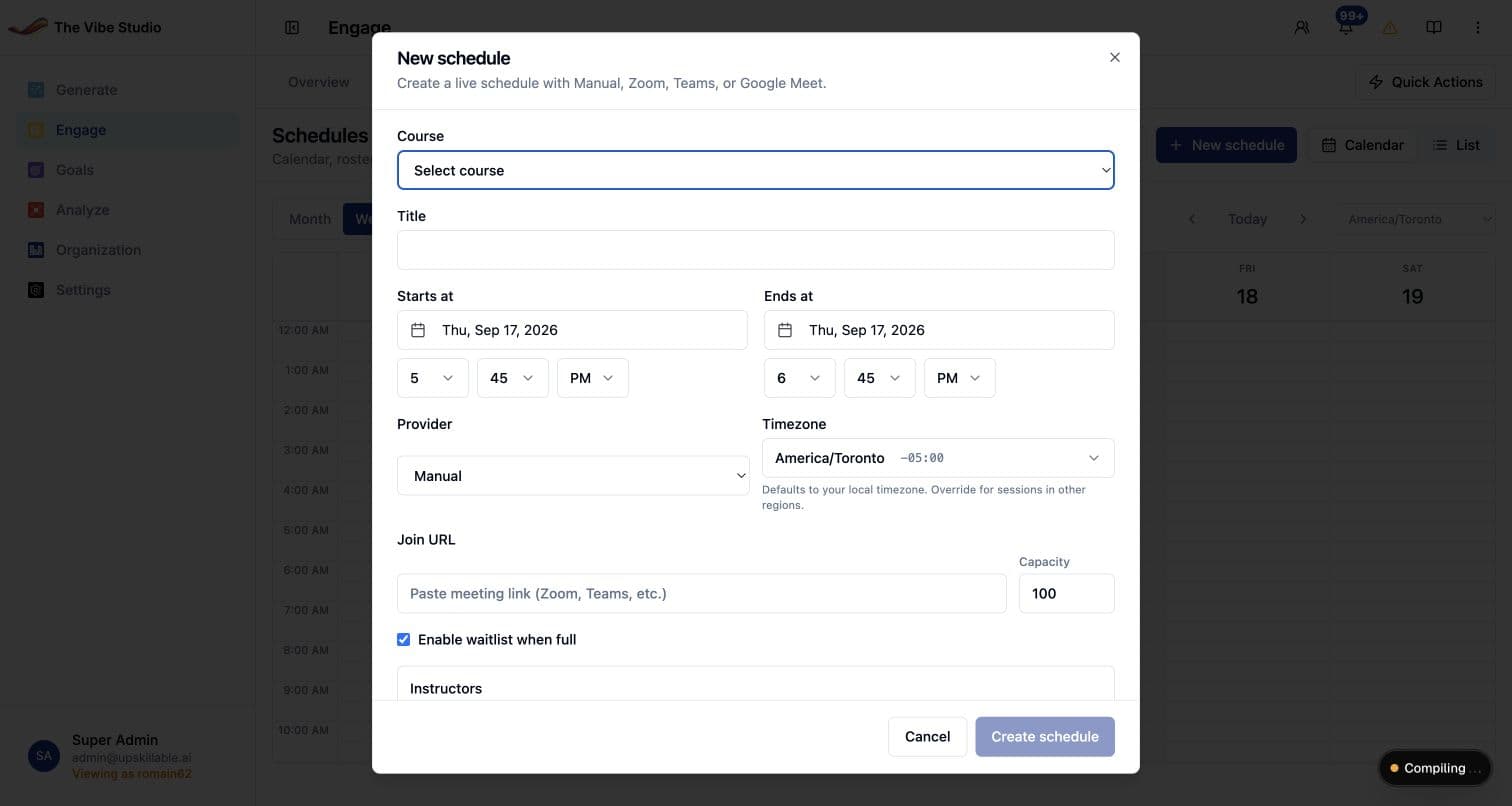
Turn the plan into a scheduled session.
Create the schedule against the course, then bring together the details learners and instructors need.
- Set the start, end, and time zone.
- Choose a meeting provider or add a join link.
- Set capacity and enable the waitlist.
- Assign instructors, then manage the roster and attendance.
04 / Give the journey a shape
One path. A sequence people can follow.
Bring self-paced courses and live learning into one path. Choose whether courses unlock in sequence or remain available together, then review progress through the journey.
- Choose an audience: all employees, a department, a site, a group, or a job role.
- Set whether the assignment is mandatory.
- For live learning, learners choose and register for an available session. A path assignment does not reserve a seat.
Prepare. Meet. Put it into practice.
- 01Build the foundation
Course
Explore the core concepts. - 02Learn together
Live workshop
Discuss decisions with an instructor. - 03Revisit the learning
Follow-up course
Work through the next activity.
Keep the follow-up specific. Review enrollment status and completion to see where a learner needs attention. Completion records progress; skills evidence answers a different question.
Explore Analyze05 / The work behind the learning
The tools to run the program.
A learning program involves more than assigning a course. Engage brings learning content, reusable materials, and workforce configuration into its Manage workspace.
Learning content
Access courses, learning paths, assessments, and certificates from one place.
Reusable materials
Find slides, documents, and assets alongside the learning you manage.
Workforce context
Manage job roles, skills, skill scales, and categories to organize the learning around your people.
06 / Keep activity in view
Signals is part of Engage.
Signals is available now within Engage’s Activity & signals area. It brings an activity journal into the workspace, giving administrators another place to review what has happened.
We’ll share a closer look at Signals and its role in the learning workflow in our next product update.
Activity & signals
Review activity.
Keep the context.
Inform the next conversation.
Part of the Living Learning System
Keep delivery connected to the next decision.
Create the learning in Generate Studio. Organize its delivery in Engage. Guide learners with the AI Coach. Examine the evidence in Analyze, then use what you find to decide what comes next.
A few practical questions
Learning operations, in plain language.
Is Engage a learning management system?
Engage is Upskillable’s LMS workspace for learning administration and delivery, including courses, enrollment, learning paths, live training, and progress review.
Does Engage include virtual instructor-led training?
Yes. Engage supports VILT, in-person, and blended course scheduling, with instructors, capacity, waitlists, rosters, and attendance. Meeting-provider connections require configuration.
How does Engage work with Analyze?
Administrators can open supporting enrollment-gap evidence from Engage in Analyze, inspect the affected audience, and use the findings to choose a next action.
Are Signals and MCP available today?
Signals is available now. MCP connects assistants to Upskillable learning, and WebMCP exposes course tools within the open workspace. Explore the MCP product page for the actions and product walkthrough.
Bring your learning operation
What needs to move next?
A new cohort. A revised procedure. A live training program.
See how Engage brings the work together.