
Product · October 27, 2026
Direct the scene: cinematic training videos in Slide Studio
 Romain Gagnon · October 27, 2026 · Founder & CEO

A cinematic training video gives every movement a job. Use a reveal to build curiosity, move related ideas together, bring the important detail closer, and shift the light when attention should move. Slide Studio keeps those choices in the editable scene, alongside your presenter and narration.
An avatar can say the words. A director decides what the viewer looks at, when, and for how long. Slide Studio puts that director's chair inside the same editable project as your presenter, narration, and slides.
Most training videos feel flat for one reason: everything arrives at once and nothing moves with intent. A good one has a rhythm. One idea appears. The eye gets time to land. The camera moves closer when it matters, the light points at the detail, and the next scene grows out of the last one.
The examples below are recordings of native Slide Studio playback and existing video exports. Each keeps its original timing, with audio removed. No movement was added for this article.
Make the reveal count
A train crosses the frame. For a moment, it hides the person waiting on the platform. Then it clears, and a wall of assigned courses appears beside him. The movement sets up the reveal: what looked like an ordinary first day suddenly feels like a lot to take on.
The train travels across the scene as an animated image element. The person, background and course cards remain separate layers. The scale of the movement makes the effect immediately visible; the pause afterwards makes the reveal readable.
Carry the idea across the cut
A hard cut tells the learner "new topic". That is right when the topic changes and wrong when the thought continues. In this excerpt, the doubts pile up in the rear-view mirror, the mirror breaks, and the road opens ahead. The argument moves from looking back to looking forward, and the transitions move with it.
Magic Move links an object across two scenes. Instead of cutting, it travels to its new position and size, and it can change rotation, colour, and font size on the way. Duplicate a scene and the elements are linked for you. Zoom Through sends the camera into a chosen element while the next scene grows out of it, which is ideal for "let's look inside this step". The other 15 transitions cover fades, dissolves, slides, wipes, pushes, and zooms for when a plain change of subject is the honest choice.
Give every move a pace
Motion is not on or off. It has speed, a path, and an ending. A quick move signals a change. A move that starts fast and settles gives the eye time to follow. Then the element holds still long enough to read.
Here, the movement explains the idea: scattered knowledge comes together. A motion path takes an element through up to three points and changes its size as it goes, or bends a single move into an arc. Duration, delay, and easing are set per element. Entrances range from a simple fade to a 3D tilt-in and a typing effect that writes text letter by letter. A simple beat structure keeps a scene readable:
- AppearBring in one idea, not five.
- MoveGuide the eye to where it belongs.
- HoldLeave time to read and listen.
- ClearExit, or carry it into the next scene.
Each beat lives on the scene timeline, next to the caption track and the presenter's narration, so you can line every reveal up against what is being said.
Frame the presenter and the point
A presenter works best with something useful to show. Every scene can have its own camera: show the whole scene, move to a medium shot or a close-up on any element, hold, then move on. Set the hold in seconds, or tell the camera to hold for as long as the presenter speaks. Slide Studio uses the measured length of the presenter's audio and keeps the frame steady until they finish.
Let a still image move
Ken Burns turns a photograph into a shot. Pick one of eight presets, such as a pan, a diagonal drift, or a reveal from a detail, or set your own path across several points of the image. Give the image a clear starting point and destination, while keeping the title steady and readable.
Move closer when the moment matters
A push-in brings the viewer gradually closer, with a sense of depth. Use it to give the closing message weight without rushing the scene. Pair it with one of six colour grades, from warm sunset to film noir, when the moment needs a different mood.
Zoom on every click in a software walkthrough
Screen recordings get the same direction. Drop a recording into a scene and the camera zooms to each click, holds, and returns to the full view, at 1.5x, 1.8x, or 2.5x, or not at all for that click. A ripple marks where the click landed. Callouts, narration, and questions sit on top.
Use light to focus attention
Lighting is the quietest way to direct the eye. Dim the scene, then aim a spotlight or a beam at the detail that matters. Set its intensity, softness, and colour, from bright white to golden, and time it to fade in, fade out, or ramp. This is light over the composition. It does not relight a photograph or recorded footage.
Direct the shot in plain words
This is the part that changes how a team works. You don't need to know which panel holds the camera settings. Describe the shot you want, and the slide assistant turns it into camera, lighting, motion, and transition changes. It then shows you the current and proposed views side by side before anything happens.
"Hold a close-up on the Meet your manager card for 4 seconds under a soft warm spotlight, then widen back to the full scene."
- Camera · close-up on "Meet your manager", hold 4 s
- Lighting · warm-white spotlight on the card, fade in
- Camera · widen back to the whole scene
Then compare current and proposed views, scrub the time slider to check the moment, and choose Apply or Dismiss.
It works like briefing a camera operator who shows you the frame before rolling. You keep the decision. The assistant sets up the motion. Because every change is a normal Slide Studio setting, you can still fine-tune it by hand afterwards.
Direct the whole sequence
The cinematic effect doesn't come from any single effect. It comes from the choices working together, and from giving each one a job. A simple four-shot pattern to start from:
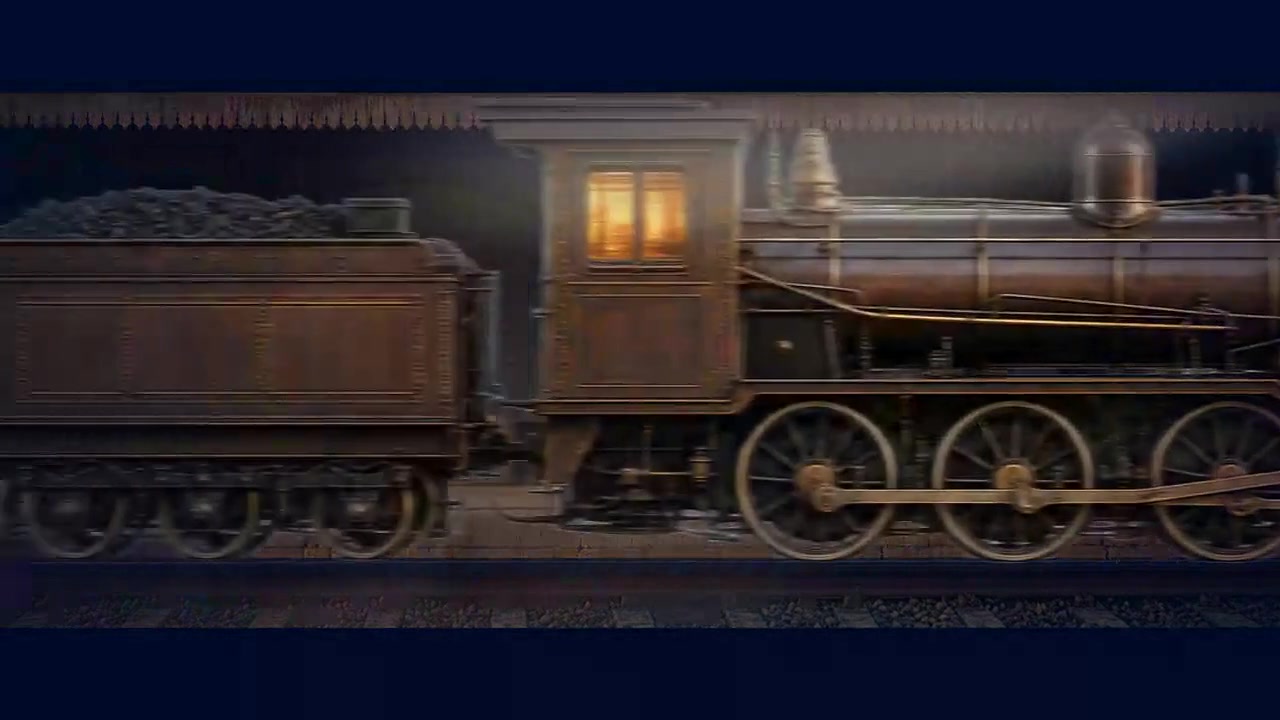 1 · EstablishOpen wide. Set the place before the reveal.
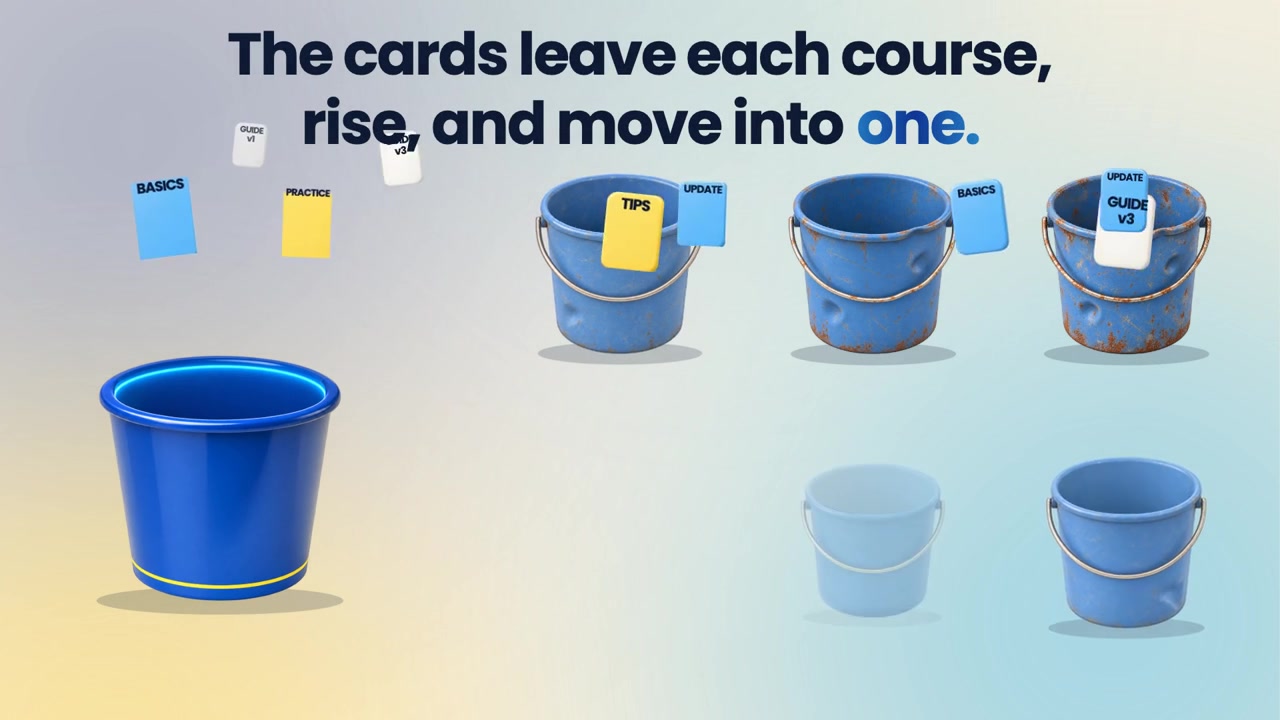 2 · RevealMove the ideas together, then let them settle.
 3 · EmphasiseLight the detail when it becomes the point.
 4 · Carry forwardTransition into the next idea, not just the next slide.
Then play it from start to finish and ask three questions. Does the learner always know where to look? Does each scene follow from the last? Is there a pause where the point needs to land? Review the whole sequence in playback, then check the exported video before sharing.
See it on your own material: book a demo and bring the walkthrough your team records most. Or watch the complete Living Learning System and Context Is the Course films, both made in Slide Studio.
Connect with us
Tell us what you are trying to get done.
This form reaches the Upskillable team. It is not a public comment thread. Prefer the longer path? Use Get started.
Prefer email? Reach us at hello@upskillable.ai.
Keep reading
Product
Keep your LMS. Bring your learning to life now.
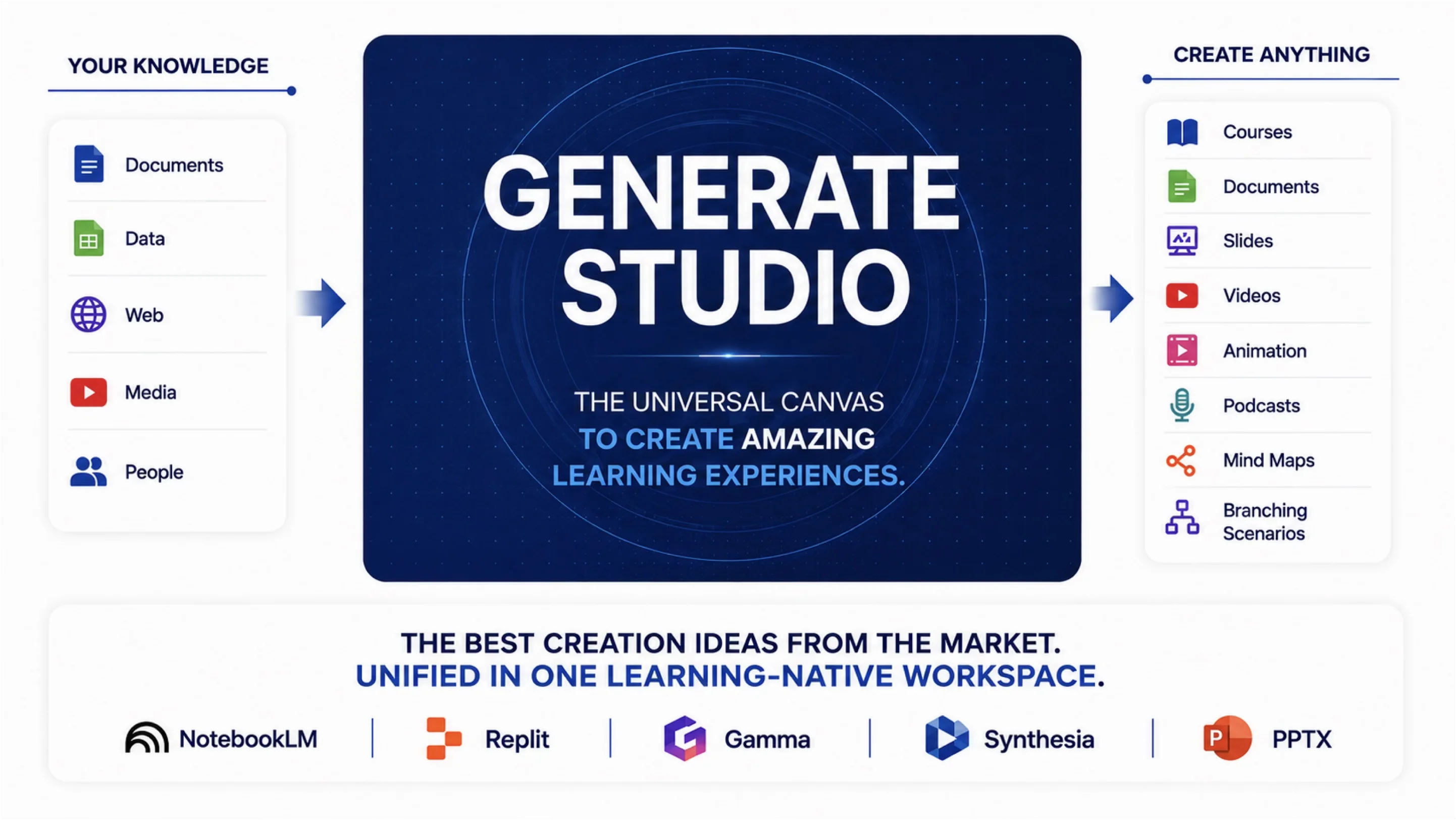
Your LMS contract may have years left. Bring the learning to life now with Generate Studio, Living Courses, and an AI Coach with the learning context.
Romain Gagnon · October 27, 2026
Product
Slide Studio: AI video, avatars, and interactive slides in one LMS
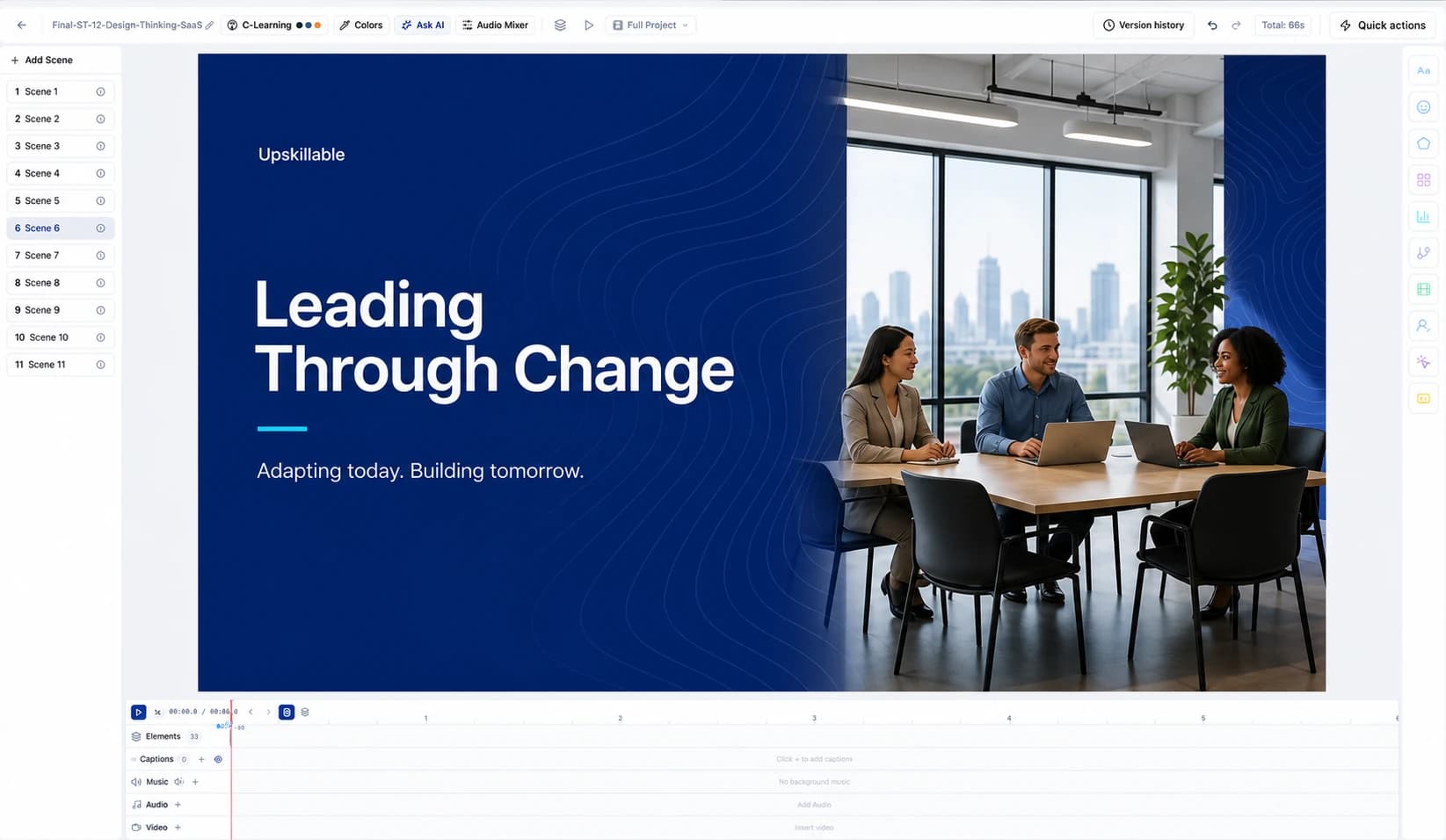
Record your screen and face, direct the shot in plain words, add a presenter, and let learners answer. Everything Slide Studio does today.
Romain Gagnon · October 22, 2026