
Product · October 22, 2026
Slide Studio: AI video, avatars, and interactive slides in one LMS
 Romain Gagnon · October 22, 2026 · Founder & CEO
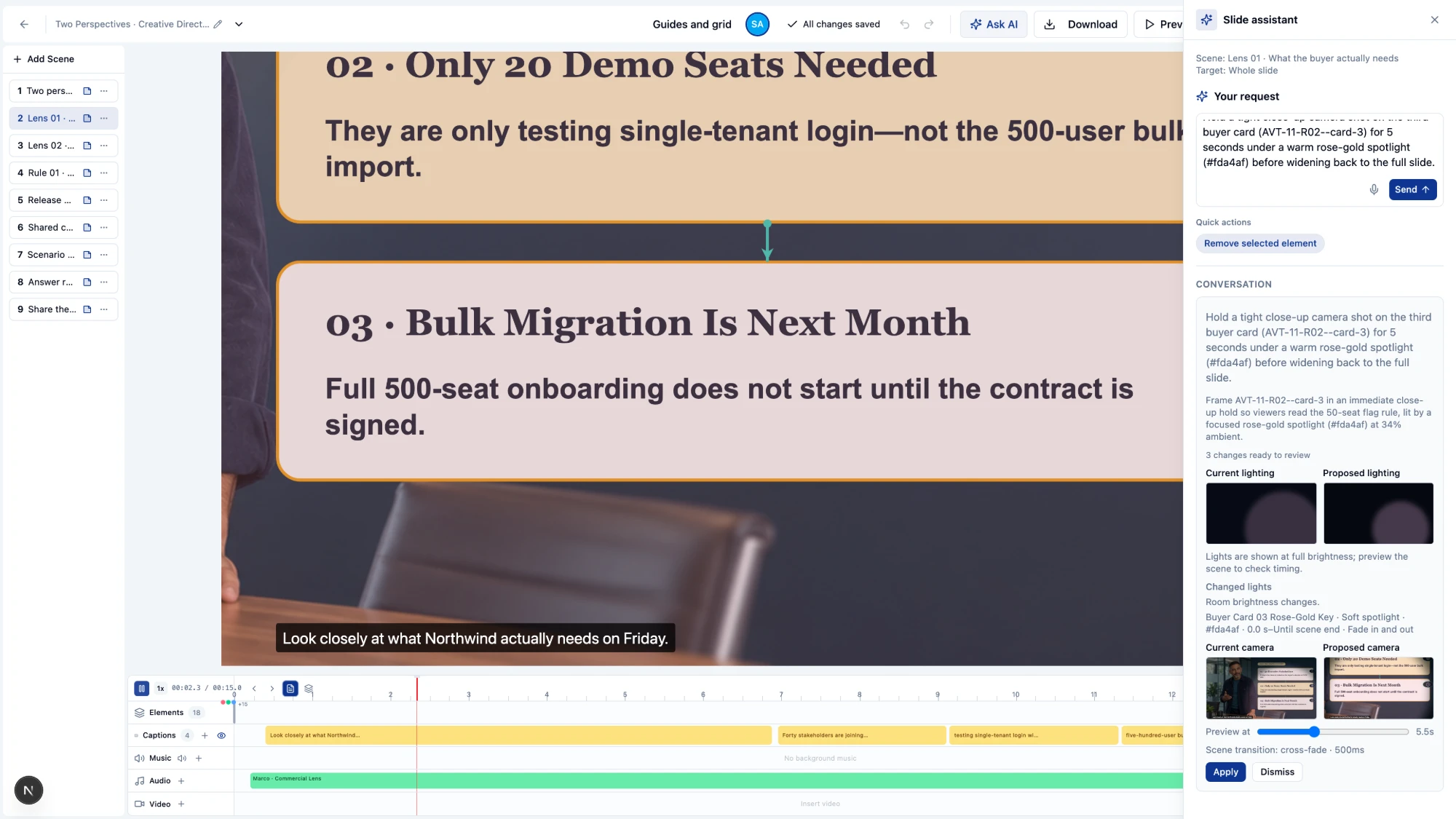
Record it, direct it, add a presenter, and let learners answer. Here is everything Slide Studio does today, in one place.
Most training teams I talk to build one explainer video with four or five tools. A screen recorder for the walkthrough. An avatar tool for the presenter. A slide tool for the visuals. A quiz tool for the check. Then an LMS (learning management system) to deliver it. Every handoff turns editable work into a flat MP4, and the next policy change starts the whole chain again.
Slide Studio is our answer to that chain. It lives inside Generate Studio, the creation workspace of Upskillable, the AI-native future of LMS. You record, design, narrate, animate, and add questions in the same project, and the result stays editable after you publish it.
Record a software walkthrough once
Showing how a system works is the most common training job, and it usually starts in a separate recorder. In Slide Studio it starts on the scene.
- Screen, face, or both. Record your screen, your camera, or your screen with your face in a corner bubble. Choose the corner, the size, a circle or a rounded shape, and mirroring. A level meter shows that your microphone is working before you start.
- Every click is captured. While you record, Slide Studio notes when you clicked, where on the screen, and the label of what you clicked, such as a button called Approve.
- Cut the mistakes. Trim the start and end, or select a section in the middle and cut it out. Undo, redo, restore a single cut, or go back to the original recording.
- Zoom on your clicks. Drop the recording into a scene and the camera can zoom to each click, hold for a moment, and return to the full view before it travels across the screen. Set each click to 1.5x, 1.8x, or 2.5x, or switch it off.
- Layer the lesson on top. Add callouts, narration, captions, and questions over the recording, then export the scene again.
Direct the shot in plain words
This is the feature I show first in demos. Type what you want the viewer to see: “Hold a tight close-up on the third buyer card for 5 seconds under a warm rose-gold spotlight, then widen back to the full slide.” The slide assistant proposes the camera and lighting changes, lists what it will change, and shows the current and proposed views side by side. Drag the time slider to check the moment, then apply or dismiss. Nothing changes until you say so.
It works like briefing a camera operator who shows you the frame before rolling. You keep the decision. The assistant does the keyframes.
Move the eye where the lesson needs it
Motion should point at the idea, not decorate the slide. Slide Studio gives you film-style controls on a scene timeline.
- Magic Move. Link an object across two scenes and it travels to its new position, size, and color instead of cutting.
- 17 scene transitions. Fades, slides, wipes, pushes, zooms, and dissolve, plus Magic Move and Zoom-Through, where the camera dives into an element to enter the next scene.
- Motion paths with several stops. Send an element from A to B to C, bend the path into a curve, and change its size along the way.
- 23 animations. 10 entrances, 7 exits, and 6 loops, including a 3D tilt-in, a typing effect, and a gentle float.
- A scene camera. Frame the whole scene, a medium shot, or a close-up, and move between them. The camera can hold for exactly as long as the presenter speaks.
- Scene lighting. Dim the room and aim spotlights or light beams at the detail that matters, with timed fades. This directs attention; it does not relight a photograph.
- Cinematic images. Ken Burns pans across several points of an image, push-in with depth, and 6 color grades.
Add a presenter who fits the audience
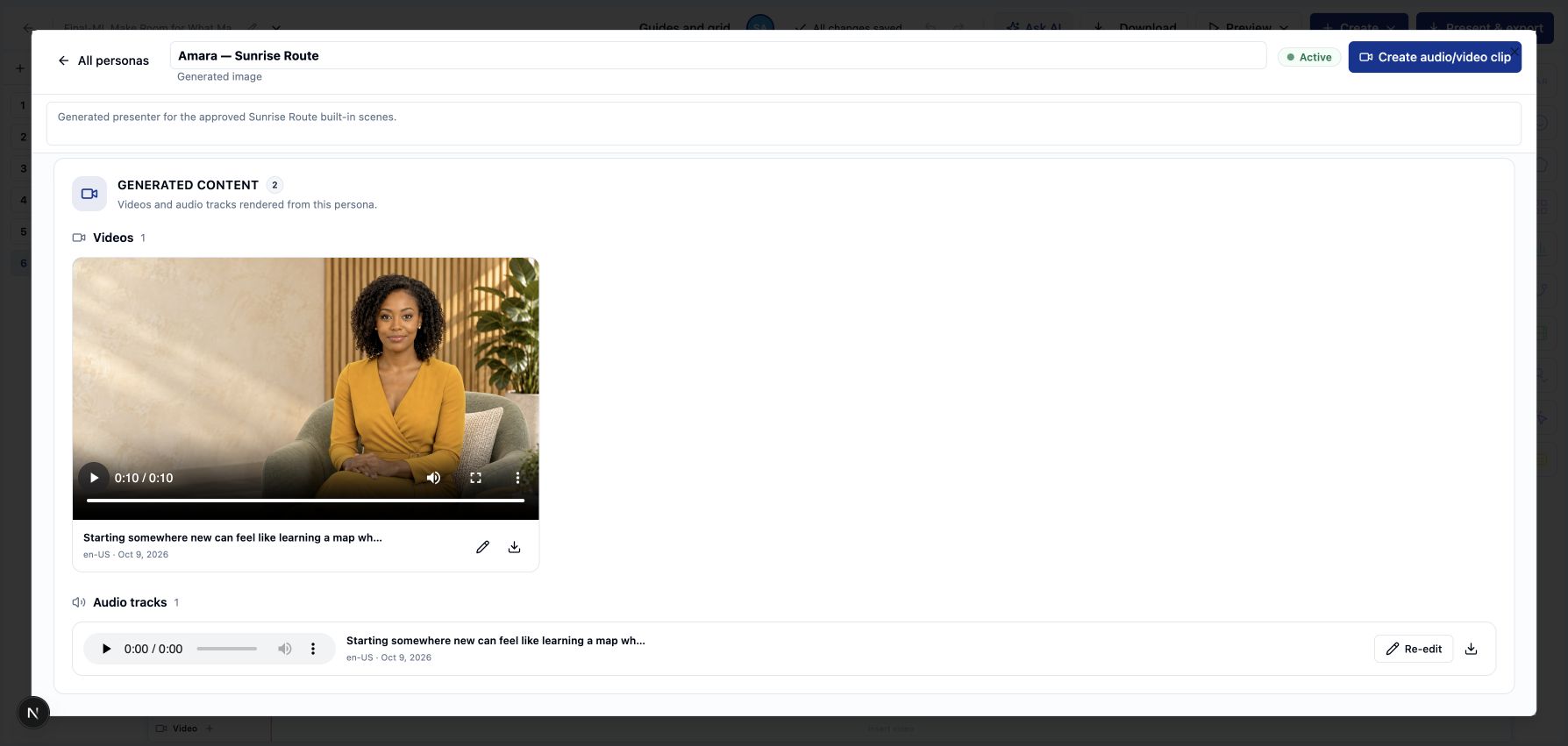
Avatar Studio sits inside Slide Studio, so the presenter is part of the scene, not a clip pasted on top.
- Start with 5 built-in presenters, or generate your own from a description. Add new poses and backgrounds that keep the same face.
- Use your own likeness. Create a personal photo avatar after a recorded consent step.
- Give each language its own voice, so a multi-language render picks the right one.
- Narration and captions stay editable. Captions export as SRT and VTT files, and background music drops to 15% while someone speaks.
Build with real parts, not pixels
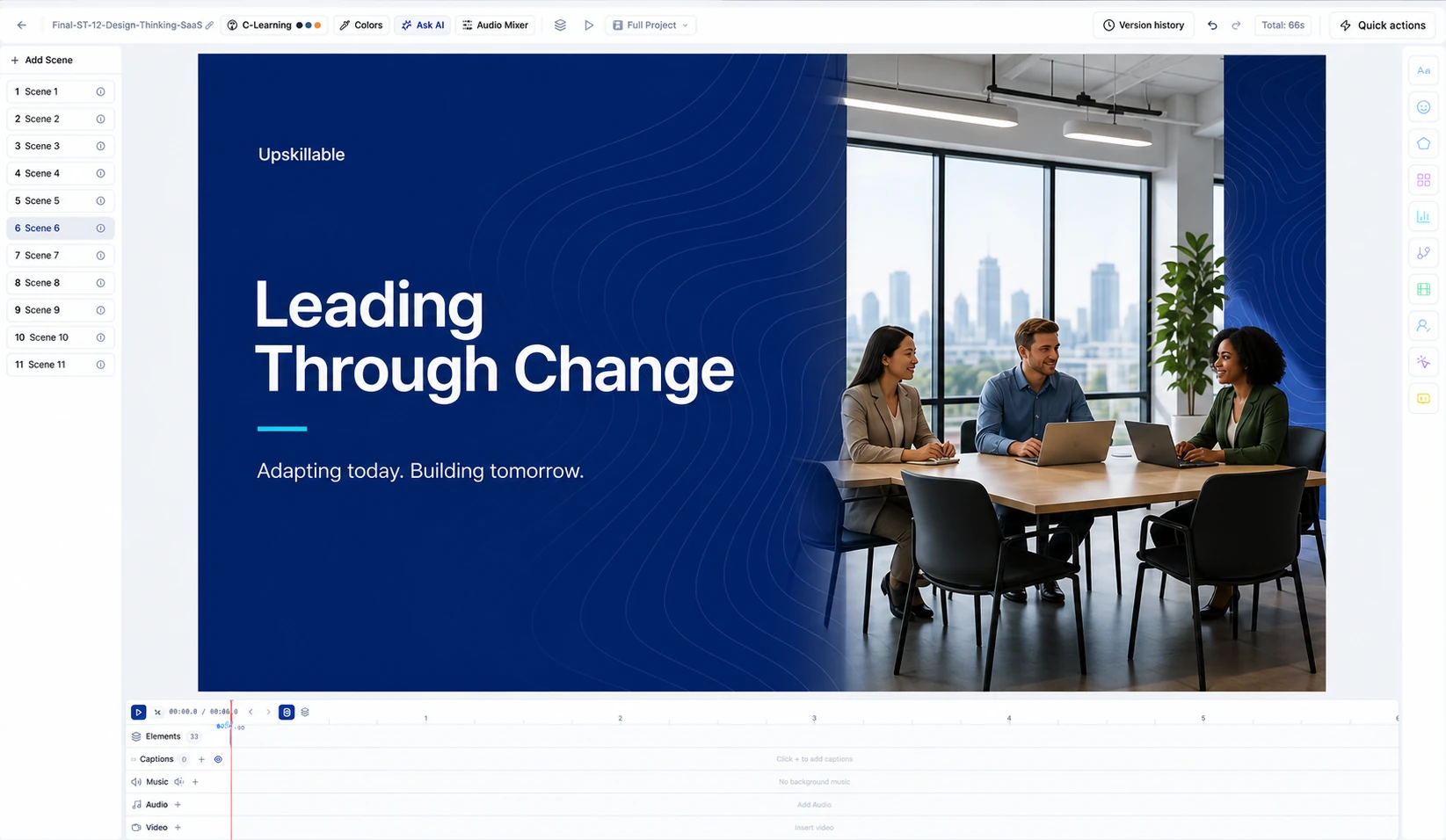
Every scene is made of structured, editable parts. That is why a change next quarter is an edit, not a reshoot.
- 19 element types on the canvas: text, charts, diagrams, smart layouts, comparison cards, tables, shapes, connectors, icons, images, video, audio, chat conversations, buttons, questions, and presenters.
- 65 shapes, including 3D isometric forms, and 10 chart types that follow your theme.
- 31 smart layout variants for grids, steps, timelines, and stats.
- Timed overlays. Each element has its own start and end on the timeline, so a lower third or a callout lands on the exact word.
- 60 one-click AI edits. Turn a table into a chart, tighten a dialogue, balance audio fades, add a focus path, or create a new scene.
Make the viewer answer, not just watch
A training video earns its place when the viewer has to make a decision. Add a question to any scene and the video pauses until the learner answers.
- The same question types as our courses: single choice, multiple response, true or false, matching, and fill in the blank, with feedback.
- Branch on the answer. Continue, jump to a moment, skip ahead, go to another scene for a refresher or an advanced path, retry, or open a reference document.
- Buttons that wait. Hold the scene until the viewer chooses to continue or explore more.
Pausing and branching work in the Upskillable player and inside courses. An exported MP4 plays straight through.
Build once, personalize for every team
Customer and regional versions of the same deck used to mean copies that drift apart. Variables keep one design and change the details.
- Company variables pull the workspace company name and contact email into any slide.
- Your own variables are added in the slide panel and inserted with one click.
- Live variables fill themselves in: the slide title, the deck title, the slide number, the total, and “Slide 3 of 9”.
- A presenter variable lets a template name its presenter role. When you publish the video, you choose which avatar, look, and voice plays it.
Start from a template, a document, or a deck
- 53 built-in templates, with more added regularly, for leadership, onboarding, safety, compliance, sales, product launches, software tutorials, and incident briefs.
- 75 video scene recipes for hooks, demos, steps, comparisons, quotes, stats, and closes, plus 37 curated themes.
- Your source material. Upload a document in Generate Studio, review the outline, and generate the slides.
- Your existing PowerPoint. Import a deck and keep editing the supported objects in Slide Studio.
Export it the way people will use it
- MP4 video with narration, presenter, music, and caption files.
- PNG of any scene at the exact moment you choose.
- PDF for handouts and review.
- Editable PowerPoint. Text, shapes, images, groups, and connectors stay editable. Some objects and timed animation cannot be exported to PowerPoint, and Slide Studio tells you before you download.
- Live playback as a self-running film or a learner-paced presentation, or inside an Upskillable course, where the AI Tutor can answer follow-up questions from the same source material.
How this compares with specialist video tools
Synthesia and Colossyan are strong products, and I'd choose them when a large stock avatar library or dubbing an existing external video is the deciding need. Slide Studio is built for a different job: training that stays editable, asks the learner to act, and connects to the course, the reference document, and the AI Tutor. We put the details side by side, with sources, in Upskillable vs Synthesia and Colossyan.
If you want to see it on your own material, take a look inside Generate Studio and tell me which walkthrough your team would record first.
Connect with us
Tell us what you are trying to get done.
This form reaches the Upskillable team. It is not a public comment thread. Prefer the longer path? Use Get started.
Prefer email? Reach us at hello@upskillable.ai.
Keep reading
Comparisons
Upskillable vs Synthesia and Colossyan
For teams making training videos, slide presentations and avatar narration: compare screen recording, presenters, shot direction, motion, questions, variables and exports, with a source beside every claim.
Romain Gagnon · October 22, 2026

Product
Living Courses: built around performance
Learn at your own pace and ask your Tutor for guidance based on your training, right when the work calls for it.
Romain Gagnon · October 11, 2026